
1. Introduction
Hexamorph is a sampler and a drum machine in one plugin. You load sounds (samples), place them on a grid of steps and get a beat or a whole track. Then you change the sound as it plays: with filters, effects and a crossfader that moves smoothly from one sound to another.
The plugin runs inside your music software (a DAW: Ableton Live, Logic, Reaper and others) or as a standalone app. It is made by Fold Devices. This manual describes the beta: some things may still change before version 1.0.
What Hexamorph does
- 16 tracks. A track is one instrument: a kick, a bass, a pad, a vocal phrase. Each has its own filters, effects and part to play.
- A step sequencer. Each track is a row of cells (up to 128). Turn a cell on and a note plays at that moment.
- Settings on every step. Any knob can be stored on one particular step: for example, every fourth hit plays higher or with a different sample.
- Scenes and a crossfader. Store two states of the sound and move smoothly from one to the other in a single gesture.
- Sample tools. Slicing, time-stretching to the tempo, recording and re-recording audio while you play.
- Effects. 18 effects: filters, delays, reverbs, compressors and more.
System requirements
- A computer with macOS 11 or later (Apple Silicon or Intel), Windows or Linux.
- A DAW that loads VST3 plugins (AU on a Mac as well). Without a DAW you can run the standalone Hexamorph app.
- No internet connection needed: the licence key is checked offline.
Installation
- Open the downloaded file
Hexamorph-<version>.pkg. If macOS says it cannot open it, go to System Settings → Privacy & Security and click Open Anyway. - Go through the installer. The plugins go to
/Library/Audio/Plug-Ins, the app to/Applications. - Restart your DAW. Hexamorph appears in the list of instruments under Fold Devices.
- Add Hexamorph to a MIDI or instrument track, like any synthesizer.
- In the top right corner of the plugin click the menu button ☰ → Enter licence key… and paste the key from your email. It starts with
HEXA-.
Windows and Linux. The VST3 plugin goes into the standard VST3 folder: C:\Program Files\Common Files\VST3 on Windows, ~/.vst3 on Linux. Then follow steps 3–5. There is no AU format on these systems.
Without a key the plugin works, but every 30–45 seconds a soft wave of noise rises and fades over 6–8 seconds. Each beta build works for 45 days, after that you need a new one.
How to read this manual
- If you are just starting, read sections 2–4 and do the exercises in section 4. Read the rest as you need it.
This fontmarks what you see on screen: button names (SAVE), pages (FLTR) and knobs (PTCH).- Key combinations are written for all systems at once. Cmd/Ctrl is Cmd (⌘) on a Mac and Ctrl on Windows and Linux. Alt is Option (⌥) on a Mac and Alt on Windows and Linux. Shift (⇧) is the same everywhere.
- A "right-click" on a trackpad is a two-finger click (on a Mac also Ctrl+click).
- Hover the mouse over any button and the plugin tells you what it does. The same goes for knobs: hover over any knob at the bottom of a page, and the hint line at the very bottom of the window says what it does.
- Almost any action can be undone with Cmd/Ctrl+Z, so feel free to experiment.
2. Basic concepts
In Hexamorph, "what to play" and "what it sounds like" are stored separately. Notes live in a pattern, sound lives in a part. Read this section once and the rest will make more sense.
A first-day glossary
| Word | What it means |
|---|---|
| Sample | an audio file: a kick drum hit, a loop, a chord, a voice |
| Slot | a numbered cell a sample is loaded into. A project has 512 of them: four pages A–D of 128 |
| Track | one instrument. A track plays a sample from some slot and runs it through its own filters and effects. There are 16 tracks |
| Step | one cell of the grid at the bottom. By default 16 steps = one bar, four steps = one beat |
| Trig | a mark on a step that says "play a note here" |
| Pattern | the trigs of all 16 tracks together: a verse, a chorus, a break. A project has 128 patterns: 8 banks (A–H) of 16 |
| Part | the sound of all 16 tracks: which samples, how the filters, effects and levels are set. Each bank has 8 parts |
| Scene | a stored variation of the sound for the crossfader: "filter closed, more reverb". Each part has 16 scenes |
| Lock | a knob value stored on one step. It applies on that step and not on the others |
How it fits together
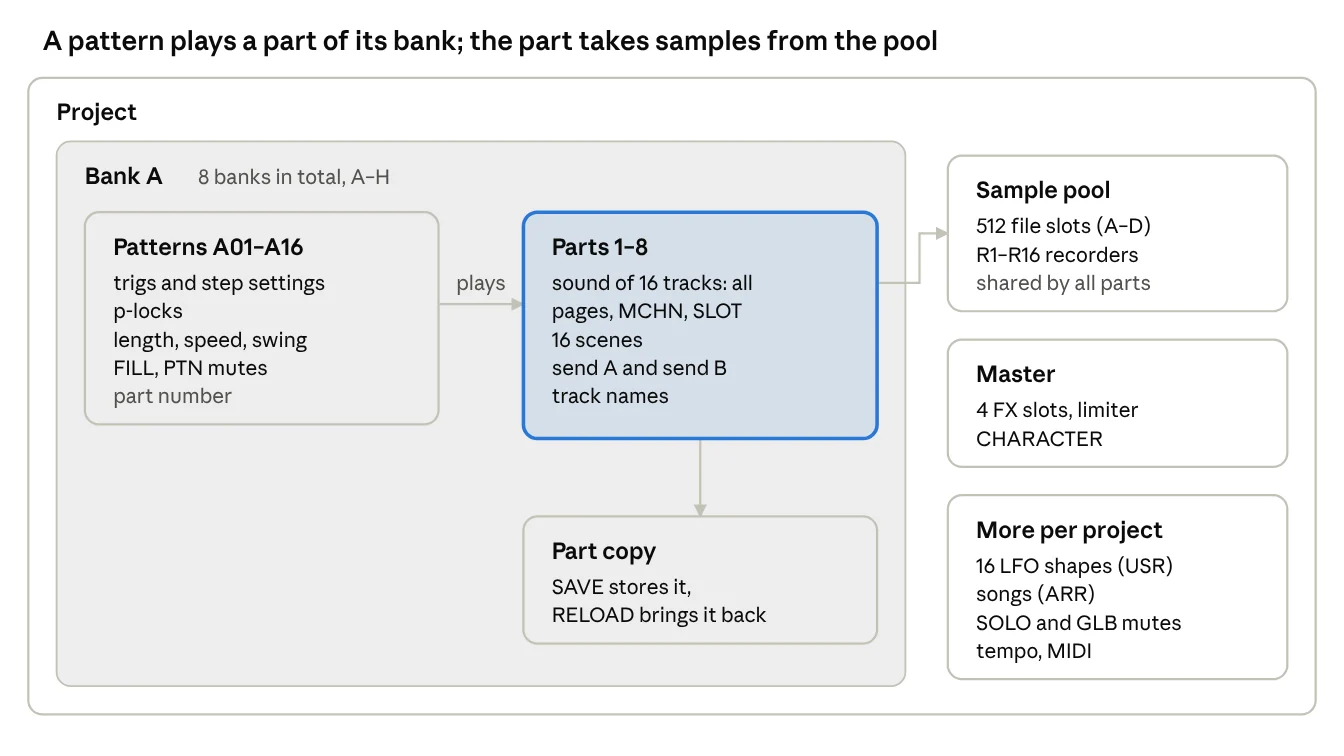
Each pattern plays one of the parts of its bank. Several patterns can play the same part.
Example. You made a verse (pattern A01) and a chorus (A02), and both play part 1. If you make the kick louder in the verse, it gets louder in the chorus too, because they share the sound. If the bridge needs a completely different set of sounds, pattern A03 can play part 2.
Samples are not tied to tracks. They live in a shared list of slots, and a track simply says "I play slot A012". That is why several tracks can play one sample, and a single step can play a different slot.
What is stored where
| What | Where |
|---|---|
| Trigs, locks, track length and speed, swing | in the pattern |
| Track settings (sample, filters, effects, levels), scenes, track names | in the part |
| Sample slots, the master section, arrangements, tempo | in the project, one for everything |
Where a knob's final value comes from
The same knob can be moved from several places at once. The plugin always combines them in the same order:
- The value from the part — where the knob normally sits.
- A lock on a step replaces it on that step.
- A scene under the crossfader replaces that too.
- An LFO (a knob moved automatically) adds movement on top.
Next to the knob you can see where a lock, a scene or an LFO has taken it (see section 3).
Saving a project
You don't need to do anything: the project is saved with your DAW session. To save it as a separate file (.hexm), open ☰ → Save as… — the plugin creates a folder named after the project.
Audio files are not copied into the project; the plugin only remembers where they are. Before moving to another computer choose ☰ → Collect samples and save: all samples are copied into the project folder.
A new instance of the plugin (and the standalone app) opens the BROKEN demo project right away: press PLAY and listen. The demo is installed with the plugin. To start from a blank page, choose ☰ → New project: it is completely empty. You can't spoil the demo: the first save asks for a new project name.
How your data is stored
Everything you change takes effect immediately and lives in the plugin's memory. It reaches the disk in two ways: when you save the DAW session, or when you choose ☰ → Save. (A project that has never been saved has no file yet, so Save is greyed out: use Save as… the first time.) Here is what goes where:
| What | DAW session | ☰ → Save (.hexm file) |
|---|---|---|
| Patterns, parts, scenes, arrangements, master | yes | yes |
| A part's SAVE restore point | yes | yes |
| Samples from files | only the file path | only the path; Collect samples and save copies the files themselves |
| Recordings R1–R16 | no | yes, into the recordings folder |
| Samples made from a recording (TO SLOT) | no | yes, into the samples folder |
| LEARN mappings, MIDI notes mode, recorder length | yes | yes |
The main point of this table: if you recorded something with a recorder, save the project with ☰ → Save (Save as… the first time). The DAW session does not keep the recordings themselves. It remembers where the .hexm file is and loads the recordings from its folder when it opens.
The DAW session and the .hexm file keep samples only as links to files. The plugin usually finds a renamed or moved file by itself, and copies the DAW's temporary files to its own folder (section 5, "Files from a DAW"). But if a file was deleted before you saved with ☰ → Save, the sound is lost from the DAW session.
This is what the project folder looks like after Save:
ProjectName.hexm— the project itself;samples— samples that had no file of their own, and copies of files after Collect samples and save;recordings— recorder takes (R01.wav … R16.wav).
Undo. Cmd/Ctrl+Z remembers the last 200 actions. Loading another project clears the history.
Global settings (sample library folder, window size, hints, licence) are not tied to a project. They are stored separately and apply to every project (see Appendix H, "Maintenance").
3. The plugin window
Read the window from top to bottom: transport, 16 tracks, page tabs, knobs and the step grid at the bottom. Everything you see on the page and in the grid belongs to the selected track.
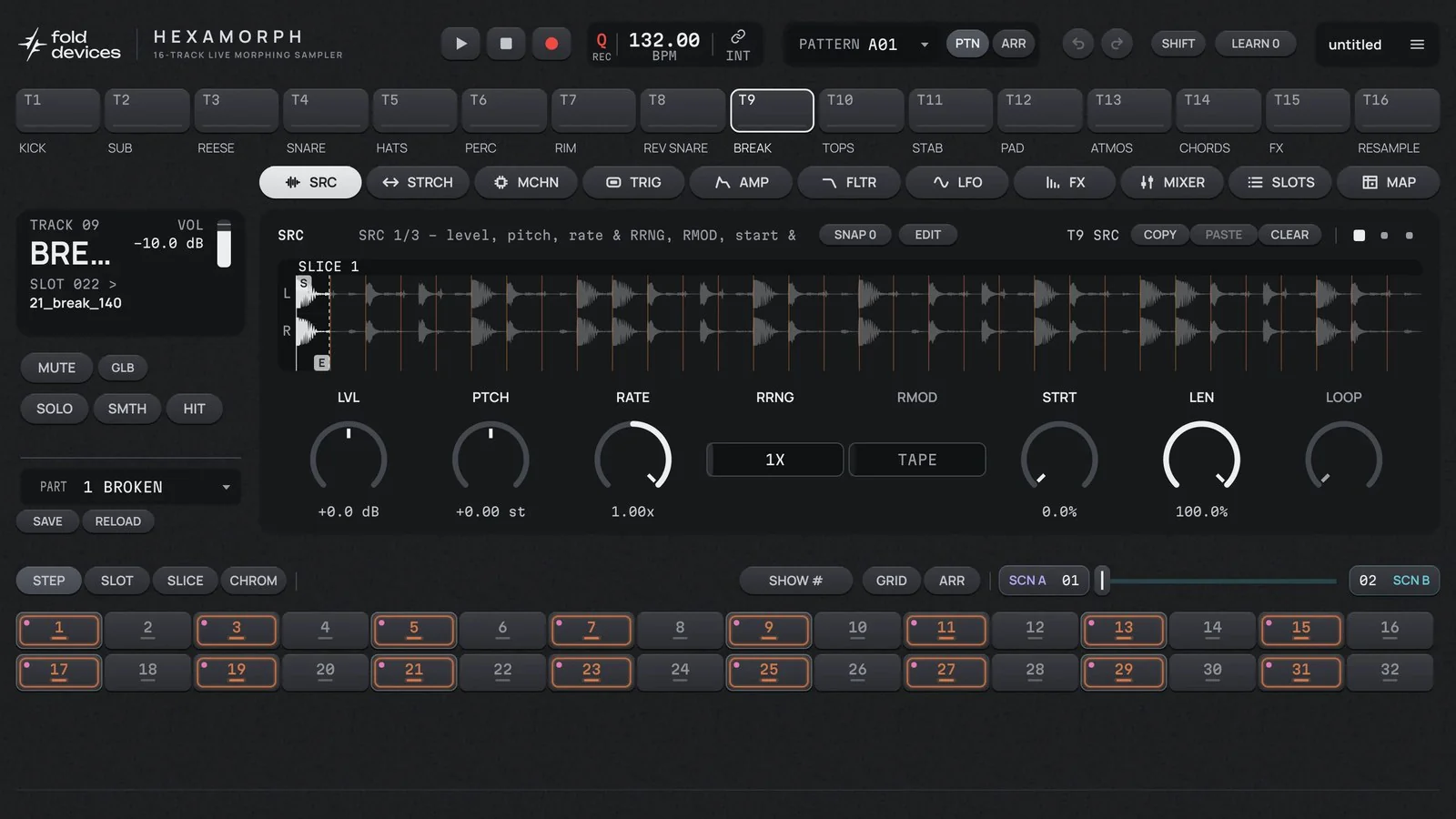
What is where
| Area | What it holds |
|---|---|
| Top bar | PLAY, STOP, the red note-record button; tempo BPM; pattern selector PATTERN; undo and redo (arrows); the ☰ menu on the right |
| Tracks | 16 buttons T1–T16 with names below them. A click selects a track; the selected one has a white outline |
| Tabs | the track's settings pages: SRC, STRCH, MCHN, TRIG, AMP, FLTR, LFO, FX, MIXER, SLOTS, MAP |
| Track card (left) | the track's name and level, which sample it plays, mute and solo buttons, part selector |
| Page (centre) | a picture (waveform, filter etc.) and eight cells with knobs. At the top: a hint and the COPY, PASTE, CLEAR buttons; the dots on the right show which sub-page you are on |
| Grid modes | STEP, SLOT, SLICE, CHROM: what the keys at the bottom do. The default is STEP — steps |
| Crossfader | SCN A on the left, the slider, SCN B on the right |
| Step grid | up to 64 keys (4 rows of 16). If a track is longer than 64 steps, 1-64 and 65-128 buttons appear |
| Line at the very bottom | short hints and messages from the plugin |
The top bar has a few more buttons you will need later:
Q— whether notes recorded live snap to the grid (section 7).INT/HOST— take the tempo from the plugin or from the DAW (section 11). The standalone app is always INT.PTN/ARR— what PLAY plays: one pattern or a whole arrangement (section 10).SHIFT— an indicator that lights up while Shift is held.LEARN— mapping knobs to a MIDI controller (section 11).
Track card
VOL— the track's level. This fader is visible on every page; a double-click returns it to 0 dB. It is the same fader as the track's fader in the mixer; in lists (LFO, MAP) it is called LEVEL. Don't confuse it with VOL on the AMP page: that one is the gain in front of the filter.SLOT A022 >and the file name — which sample the track plays. A click opens the slot list.MUTEsilences the track,SOLOleaves only this track audible. ForGLBsee section 10.HITplays the track once — handy for hearing the sound.SMTH— smooth transitions between locks (section 7).PART— which part (set of sounds) the current pattern plays.SAVEandRELOADbelow it store and bring back the sound (section 8).
Knobs and cells
Each page has eight cells. A cell can hold a knob (for continuous values), a list (a choice of options, for example TAPE / TIME) or a number with plus and minus buttons. An empty cell with a dotted outline means there is nothing there in the current mode.
Under each knob is its current value in readable units: -7.00 st (semitones), 2.40 kHz, 1/16, L50 (panned left).
Coloured arcs around a knob show what else is changing the sound besides the knob itself: pink — a lock on a step, purple or teal — scene A or B, the third ring — an LFO.
Where a knob writes. Normally a knob changes the sound of the whole track. There are two special modes:
- P-LOCK — a step blinks with a white outline, and the knob writes its value only to that step (section 7).
- Scene editing —
SCN AorSCN Bis lit, and the knob writes into the scene (section 10).
Mouse
| Action | What happens |
|---|---|
| Drag a knob up or down | changes the value |
| Shift + drag | changes it more finely, in small steps |
| Double-click a knob | returns it to the default value |
| Right-click a knob | removes a lock or a scene value (does nothing in normal mode) |
| Click a track button | selects the track |
| Double-click a track button | opens the slot list |
| Double-click the name under a track | rename the track |
| Right-click a track button | copy, paste or clear the track's notes (SEQUENCE) or sound (SOUND) |
| Drag an audio file onto a track button | the track starts playing this file |
| Hover over a button | a hint |
Working with steps is described in section 7.
Computer keyboard
The keys work while the plugin window is active (click on it).
| Keys | Action |
|---|---|
| A W S E D F T G Y H U J K O L P | play the selected track with notes, like a piano: A = C, W = C sharp, S = D and so on |
| Z / X | octave down / up |
| C / V | play softer / louder |
| 1 or 2 (hold) | edit scene A or B while the key is held |
| Backspace (hold) | erases notes while recording |
| Esc | leave a special mode |
| Cmd/Ctrl+Z / Cmd/Ctrl+Shift+Z | undo / redo |
Some DAWs take keys for themselves. If 1 and 2 don't work, use the SCN A and SCN B buttons.
4. First steps
In 10 minutes you will build a simple beat, make one step different from the others and try the crossfader. To begin, you can just listen to the demo: press PLAY and move the crossfader at the bottom.
Step 1. Load sounds
- Open the ☰ menu → New project. The project is empty, and the tracks don't play anything yet.
- Find a kick drum file in Finder, Explorer or your file manager (or in your DAW's browser) and drag it onto the
T1button. - Press
HITon the track card on the left. You should hear the kick. - Drag a hi-hat onto
T2the same way.
Step 2. Place notes
- Click
T1. At the bottom, click keys 1, 5, 9 and 13 — orange outlines appear on them. That is a kick on every beat. - Click
T2and turn on steps 3, 7, 11 and 15 — hi-hats between the kicks. - Press
PLAY. Change the tempo in theBPMfield. - Try the knobs. On the
SRCpage thePTCHknob changes the pitch of the hat; on theAMPpage setMODEto AHD, and theDECknob makes it shorter or longer. (In the default ADSR mode withSUSat 1, DEC changes nothing: the sound holds at full level.)
To remove a note, click the step again.
Step 3. Make one step special
This is the key technique in Hexamorph. Any knob can have its own value on a single step. That value is called a lock.
- On
T2, right-click step 7. The step blinks with a white outline. - On the
SRCpage turnPTCHto +7. A pink arc appears around the knob, and a pink dot on the step. - Click an empty part of the window. Now the hat on step 7 plays higher, and on the other steps it plays as before.
Step 4. Try the crossfader
The crossfader moves the sound smoothly from one state (scene A) to another (scene B).
- Press
SCN B. The button lights up: knobs now write into scene B. - Select
T1, open theFLTRpage and raise theFREQknob to about 2 kHz. The kick becomes thin, without lows. - Press
SCN Bagain to leave. - Drag the crossfader slider from left to right. The low end of the kick fades away smoothly and comes back.
Step 5. Save
- The project is saved with your DAW session.
- The
SAVEbutton on the track card stores the current sound. If you mess something up later,RELOADbrings it back. - For a separate file, choose ☰ → Save as…
From here you can read the sections in order or jump straight to the topic you need.
5. Samples and slicing
All samples in a project live in one list of 512 slots. They are split into four pages of 128 and named by page and number: A001…A128, B001…B128, C001…C128, D001…D128. A track simply says which slot to play. If you replace the file in a slot, it changes on every track that plays it.
Loading a sample
WAV, AIFF and FLAC files are supported.
- The easiest way is to drag a file onto a track button. The file takes a free slot, and the track starts playing it right away. You can drag from Finder, Explorer, the Ableton browser or Splice.
- Into a specific slot: on the
SLOTSpage select a slot and clickLOAD. - A whole folder:
LOAD FOLDERon theSLOTSpage. The files go into consecutive empty slots starting from the selected one (on one page if possible); slots already in use are not touched. Subfolders are read too, each as its own block. Hidden and unreadable files are skipped, and the hint line says where the files went and which could not be read. This is handy for loading kits: eight different hats, for example.
The SLOTS page
A list of all slots: number, file name, length, how much memory it takes and which tracks use it. Open it quickly by double-clicking a track button or by clicking SLOT on the track card.
| Action | What happens |
|---|---|
| Click | select a slot |
| Shift+click | listen to the sample without changing anything |
| Double-click | the selected track starts playing this slot |
| Right-click | a menu with Clear slot; if the slot is in use, the menu first lists where it is played. Cmd/Ctrl+Z brings a cleared slot back |
List pages. At the top are the tabs REC | A | B | C | D. REC holds the recorder takes R1–R16, A–D are pages of 128 slots. A star on a tab shows where the selected track's slot is. The USED button leaves only the slots the project actually plays (in parts, scenes, locks, through SPAN or LFO), plus the selected one and one empty slot — you can drop a new file there.
Memory: RAM, LIMIT, PURGE
Samples are held entirely in RAM. So that a large file or a whole folder doesn't eat all of your computer's memory, a project has a limit.
- RAM — a bar on the SLOTS page, for example "RAM 1.21 / 2.00 GB": how much of the limit is in use. Above 80 % it turns yellow, above 95 % red. A star means the limit has been lowered because the computer has less memory.
- LIMIT — how much memory this project's samples may take: 512 MB, 1, 2, 4, 8 or 16 GB. The default is 2 GB. The limit is saved with the project.
- PURGE — clear every slot the project doesn't play anywhere. The plugin looks at all parts (including their SAVE points), scenes, locks, SPAN and LFOs on SLOT, and only touches what nothing can reach. Before clearing, it shows how many slots and how much memory will be freed. PURGE cannot be undone, and it clears the Cmd/Ctrl+Z history.
If a new file doesn't fit, the plugin first frees memory held by the undo history. If that is not enough, it shows a window: what didn't fit and what you can do — PURGE, a shorter file or a higher LIMIT.
If a sample didn't fit into the limit when a project was opened, its slot is marked (NOT LOADED). The file path is kept and survives saving. As soon as you raise LIMIT or free memory with PURGE, these slots load by themselves.
Files from a DAW
- Temporary files. If you drag a file that lives in a temporary folder (for example, a recording from an unsaved Live set), the plugin copies it right away: into the project's
samplesfolder, or, if the project has not been saved yet, into theImportedfolder inside the settings folder. That way the sound is not lost when the DAW cleans up its files. - Part of a clip from Live. A clip gives the whole source file, not the trimmed region. To drag just a piece, Consolidate or Crop it in Live first.
- Renamed files. The plugin remembers a "fingerprint" of every sample. If a file is not found by its path or name when a project opens, the plugin looks for the same sound in the sample folders and where the file used to be. Anything found under a new name is reported in the hint line as FOUND UNDER A NEW NAME.
- Deleted files. If a file is gone but the sound is still in memory, ☰ → Save writes it into the project's
samplesfolder.
Which sample a track plays: SLOT, SPAN, PICK
One knob is enough: SLOT, the slot number. It is on the third sub-page of SRC (press SRC twice). The value -- means "no sample", and such a track is silent. The mouse wheel over the SLOT field moves one slot at a time; Shift+wheel jumps to the same number on the next page (A → B → C → D → REC → A).
Two more knobs let a track choose between several samples by itself:
SPAN— how many consecutive slots, starting from SLOT, take part in the choice (1–16).PICK— which of them plays: 0 % — the first, 100 % — the last.
Example: a random hat. Load four hats into slots A012–A015. Set SLOT = A012, SPAN = 4 and PICK = 50 %. On the LFO page choose the RND (random) wave, the PICK destination and MODE = HOLD, raise DEP to the maximum and SPD to, say, 32. Now every hit plays one of the four hats at random.
The sample is chosen at the moment of the hit and doesn't change until the next hit.
A different sample on one step. SLOT can be locked like any knob (section 7). For example, a kick plays the whole bar, and on the last step the same track plays a cymbal. Such a step has a pink corner at the top right.
Besides pages A–D there is the REC page with 16 slots R1–R16. These are the takes from the track recorders (section 6).
Grid keys as samples (SLOT mode)
Press SLOT above the step grid. Now each key is a slot from the page (A–D) where the selected track's slot is:
- a click plays that sample through the selected track, with all its filters and effects;
- Shift+click makes it the track's main sample;
- while recording (section 7), hits are recorded together with the slot number.
Slicing
A slice is a piece of a sample. For example, a break can be cut at its hits and rebuilt in a different order. A sample can have up to 64 slices, and they are saved with the sample.
How to slice.
- On the
SRCpage pressEDIT— the sample editor opens. - Press
16to cut into 16 equal parts, orTRANSIENTSto cut at the hits. - Press
BACK. - On the third sub-page of
SRCsetSLICE= ON. Now the track plays one slice instead of the whole sample.
| Knob | What it does |
|---|---|
SLICE | play slices (ON) or the whole sample (OFF) |
SLIC | which slice plays |
SLEN | how many consecutive slices one hit plays |
To rebuild a break, lock different SLIC values on different steps. Even easier, switch the grid to SLICE mode: the keys at the bottom become slices, and you can play and record them by hand. In this mode the computer keyboard plays slices too; Z and X page through them 16 at a time.
Sample editor (EDIT)
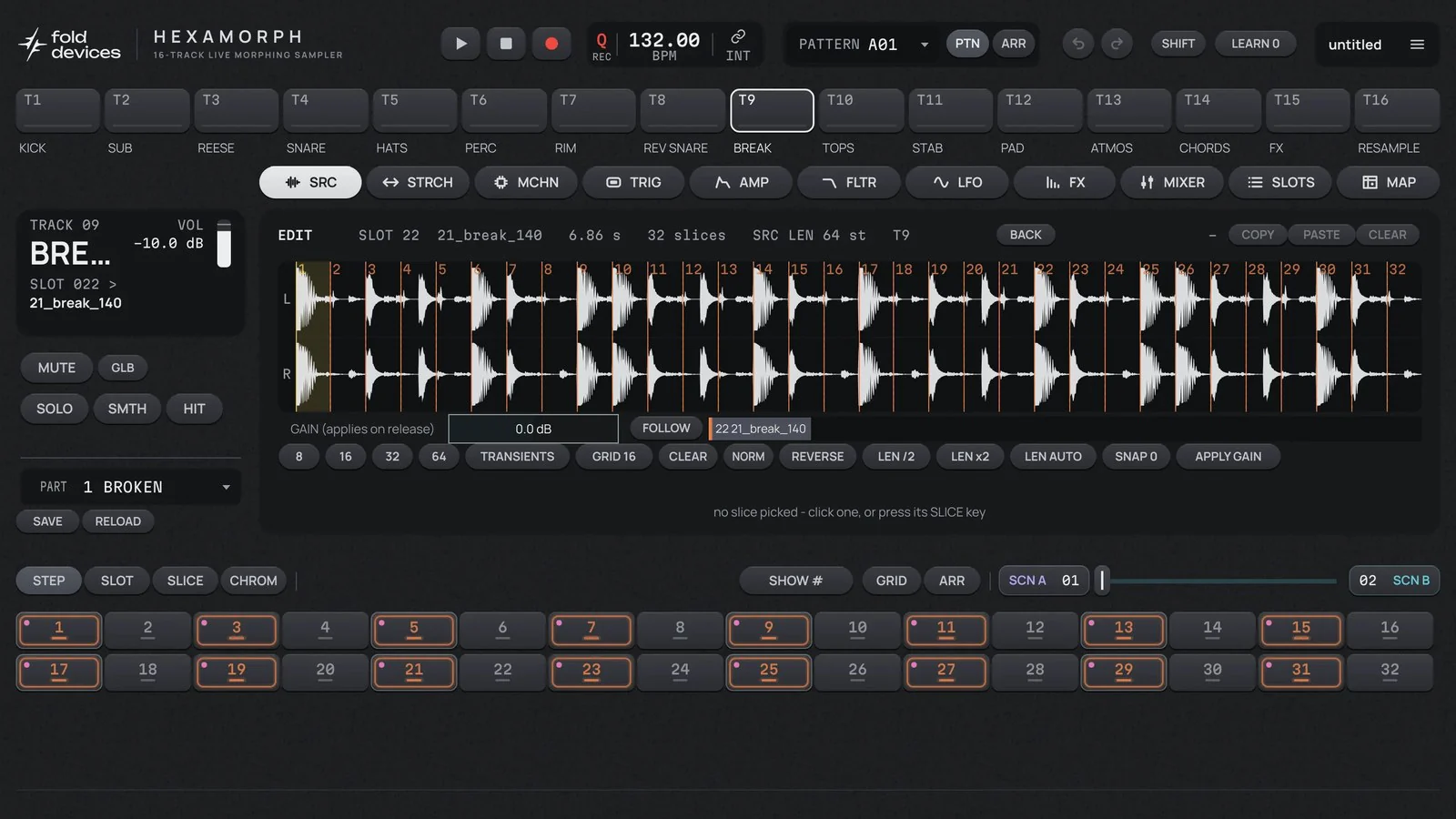
| Action on the waveform | What happens |
|---|---|
| Click | select a slice |
| Double-click | add a cut |
| Drag a flag | move the start or end of a slice |
| Right-click a flag | remove the cut |
| Shift+click | listen |
| Alt+click | set the point the slice loops back to |
| Mouse wheel | zoom in or out |
| Button | What it does |
|---|---|
8, 16, 32, 64 | cut into that many equal parts |
TRANSIENTS | cut at the hits |
GRID 16 | move the cuts onto an even grid |
CLEAR | remove all cuts |
NORM | make the sample as loud as possible without clipping |
REVERSE | reverse the sample |
GAIN + APPLY GAIN | make the sample quieter or louder (−24 to +24 dB) |
LEN /2, LEN x2, LEN AUTO | correct how many steps the loop lasts (SRC LEN in the header). Needed for time-stretching (section 6) |
SNAP 0 | while lit, cuts land on points where the waveform crosses zero, so there are no clicks |
FOLLOW / PIN | show the sample that is playing now, or keep the selected one |
Edits change the sample in the slot, that is, on every track that plays it at once. They can be undone.
The SRC page itself also shows a waveform. You can drag the start and end of playback on it with the mouse. The wheel zooms, Alt + drag moves the view, a double-click shows the whole waveform.
6. Track sound: the settings pages
Each track is a chain the sound passes through. Each link of the chain is set on its own tab:
- Source (
SRC,MCHN,STRCH) — where the sound comes from and how the sample plays. - Level over time (
AMP) — attack, decay. - Filters (
FLTR) — which frequencies get through. - Effects (
FX) — four in a row (section 9). - Mixer (
MIXER) — final level and panning (section 9).
Three LFOs work over all of this — they move any knob automatically.
Some pages have several parts. Pressing the tab again shows the next part, and the part number is in the header (SRC 1/3, SRC 2/3…).
SRC — how the sample plays
SRC 1/3
| Knob | What it does | Range |
|---|---|---|
LVL | the level of the sample itself. Handy for evening out a quiet or overly loud file | −24…+24 dB |
PTCH | pitch in semitones. +12 is an octave up | −24…+24 |
RATE | playback speed. 1.00 — as is, 0.50 — half speed, negative — backwards, 0 — silence | −2…+2 |
RRNG | how much the RATE knob covers over its full turn: ±1 (finer) or ±2 (wider) | 1X, 2X |
RMOD | how RATE behaves when time-stretch is on. TAPE — like a tape machine: slower and lower. TIME — slower but at the same pitch; near zero the sound "freezes" into a cloud | TAPE, TIME |
STRT | where in the sample to start | 0–100 % |
LEN | how much of the sample to play | 0–100 % |
LOOP | where to jump back to when looping (only when PLAYBACK = LOOP) | 0–100 % |
Start and length apply from the next hit: a note that is already sounding is not cut off.
SRC 2/3
| Knob | What it does | Values |
|---|---|---|
PLAYBACK | play once (ONE SHOT) or in a loop (LOOP) | ONE SHOT, LOOP |
RTRG | how many times to repeat the hit — for rolls and flams | OFF, 1–16 |
RTIM | how often to repeat | 1/4 to 1/64, triplets included |
DCLK | smooths the edges of the sound so there are no clicks. 0 — sharp, as for drums | 0–10 ms |
SRC 3/3 — choosing the sample and slices: SLOT, SPAN, PICK, SLICE, SLIC, SLEN. Details in section 5.
STRCH — stretching to the tempo
Normally, if you speed a sample up, it also gets higher. Time-stretch changes only the speed and keeps the pitch. That way a loop at another tempo plays at the project tempo.
| Knob | What it does |
|---|---|
TSTR | the mode (see below). OFF — no stretching |
TLEN | how many steps the sample should last. AUTO — the plugin works it out |
GRAIN | the size of the pieces the sound is cut into, 5–250 ms (for GRAIN and TRKR) |
BGRD | the musical grid for BEATS and RPT: 1/1 to 1/32, TRNS — at the sample's own hits |
BDIR | for RPT: where the repeat goes — once, in a loop, backwards, back and forth |
BLEN | for RPT: how much of each piece sounds |
| Mode | Good for |
|---|---|
| BEATS | drum loops and breaks: the hits stay in place |
| GRAIN | pads, vocals, long smooth sounds |
| TRKR | the dirty "digital" sound of old trackers: you hear a buzz, and that is part of the sound |
| RPT | a stutter effect (beat repeat): pieces repeat on the grid |
For stretching to work right, the plugin must know how many steps the sample lasts. That number is shown in the sample editor (SRC LEN). If a loop plays twice as fast or slow as it should, correct it with the LEN /2 or LEN x2 buttons there.
MCHN — where a track gets its sound
The MCHN knob ("machine") decides what the track plays. In most cases STATIC, the default, is what you want.
| Machine | What it plays | When you need it |
|---|---|---|
| STATIC | a sample from a slot | always, by default |
| FLEX | a sample or a take from any recorder (R1–R16) | to play what you just recorded |
| THRU | sound from outside (a synth, a microphone, another DAW track) | to run outside sound through filters, effects and the crossfader |
| NEIGH | the sound of the track above it (for T5, the sound of T4) | when one track needs more than four effects |
| PICKUP | its own recorder as a looper | to record and layer loops live |
STATIC and FLEX in the beta. Right now these two machines work the same way: both load the whole sample into memory. STATIC is groundwork for streaming, that is, reading long files straight from disk without loading them into memory. Streaming is still in development, and until it arrives we recommend choosing FLEX, so your project doesn't change in the future.
How NEIGH works. Put the NEIGH machine on T5, and the sound of T4 no longer goes to the mix but through the filters and effects of T5. T4 no longer sounds on its own, and its level meter stays at zero. To mute or solo such a pair, use MUTE and SOLO on T5.
The recorder. Each track has its own recorder that records audio while you play. Track 1's take goes into slot R1, track 2's into R2, and so on. Any track with the FLEX machine can play such a take.
Example: resample the drums and slice them.
- Choose a free track, for example T16, and open
MCHN. MCHN= FLEX,RSRC= MAIN (record the main mix),RLEN= 16 (one bar).- Start playback and press
RECon this page. One bar is recorded into R16. - On
SRC 3/3setSLOT= R16 and place trigs — the track plays the take. - To work with the take like a normal sample (slice it, save it), press
TO SLOT.
| MCHN knob | What it does |
|---|---|
MCHN | the track's machine |
RSRC | what the recorder records: the plugin input (IN …), the main mix (MAIN) or one of the tracks (T1–T16) |
RLEN | how many steps to record. FREE — until you stop it |
QREC | when recording starts after pressing REC: immediately (OFF), at the start of the pattern (PLEN) or at the nearest 1–16-step boundary |
RTRG | what to do if recording is started again: ONE — start over; ONE2 — finish to the end; HOLD — record while REC is held; ONESHOT — record once and then play it until you press CLEAR |
RLOOP | after the recording ends, stop (OFF) or keep recording in a loop (ON) |
TIN | which input the THRU machine listens to |
The buttons next to the recorder: REC — start and stop, CLEAR — erase the take, TO SLOT — turn it into a normal sample, WAV — save it to a file. The recording length is limited by the ☰ → Recorder length setting (4 to 60 seconds). Recording can also be started from the sequencer: Cmd/Ctrl+Alt+click on a step places a red dot that means "start recording here".
PICKUP — the looper. Press REC — the track records a piece and immediately starts repeating it in time with the music. Press REC again to layer a new overdub. Knobs: LEN — the loop length relative to the first one (1/4 to ×8), OP — add a layer (DUB) or replace (REPL), DIR — forwards, backwards or back and forth, GAIN — loop level. CLEAR — start over.
AMP — level over time
An envelope is how a sound swells and fades. A short envelope turns any sample into a short hit; a long attack makes a pad that fades in smoothly.
There are two shapes (the MODE knob):
- ADSR — rise (
ATK), fall (DEC) to theSUSlevel, where the sound stays while the note lasts, and the fade after it (REL). Good for long sounds. - AHD — rise (
ATK), hold (HOLD) and fall (DEC). Doesn't depend on note length. Good for drums.
| Knob | What it does | Range |
|---|---|---|
ATK | how slowly the sound swells | 0.5 ms – 4 s |
HOLD | how long the sound stays at its peak (AHD) | 0.5 ms – 4 s |
DEC | how long the fall lasts | 5 ms – 8 s |
SUS | the level the sound holds at (ADSR) | 0–1 |
REL | how long it fades after the note ends (ADSR) | 2 ms – 8 s |
RSET | ON: every hit starts from silence. OFF: from the current level (fewer clicks with fast hits) | OFF, ON |
MODE | the envelope shape | ADSR, AHD |
PAN | panning: left or right | L100…R100 |
VOL | gain in front of the filter. If the track goes on into drive or distortion, this is the knob to push it with | −24…+24 dB |
Note length is set by the LEN field on the TRIG page (section 7). By default a note lasts until the next hit.
FLTR — filters
A filter removes some frequencies: for example, it cuts the highs to make a sound duller, or the lows to make it thinner. A track has two filters: the main one and an extra one.
Main filter types (TYPE):
| Type | What it does |
|---|---|
| BAND | passes a band from FREQ up by SPAN octaves. A wide band cuts only the lows, a narrow one leaves only the mids. It is the default and cuts nothing in its initial position |
| LP2, LP4 | cut the highs (duller sound). LP4 is steeper |
| HP2, HP4 | cut the lows (thinner sound). HP4 is steeper |
| BP | keeps a narrow band around FREQ |
| NOTCH | cuts out a narrow band around FREQ |
| PEAK | boosts a narrow band around FREQ |
FLTR 1/2 — the main filter
| Knob | What it does |
|---|---|
ATK, DEC, SUS, REL | the filter's own envelope: it moves the frequency on every hit. This is how a "quacky" bass is made |
FREQ | cutoff frequency, 20 Hz – 18 kHz |
RESO | resonance: emphasises the cutoff, the sound gets sharper |
TYPE | the filter type (see the table above) |
ENV | how far the envelope moves the frequency; negative — the other way |
FLTR 2/2 — extras
| Knob | What it does |
|---|---|
DEL | delay before the filter envelope starts, up to 1 s |
SPAN | band width, 0–10 octaves (BAND type only) |
DRV | drive together with the filter; 0 — off |
KEY.T | how much the cutoff follows the note pitch: higher notes sound brighter |
BASE, WDTH | the extra filter: the lower edge and the width of its band. Handy for removing extra lows or highs separately |
BW.RT | the extra filter before the main one (PRE) or after it (POST) |
RSET | restart the filter envelope on every hit |
LFO — moving knobs automatically
An LFO is an invisible hand that turns the chosen knob back and forth by itself. Use it for a swaying filter, a drifting pitch, a random choice of sample. A track has three LFOs (sub-pages 1, 2, 3).
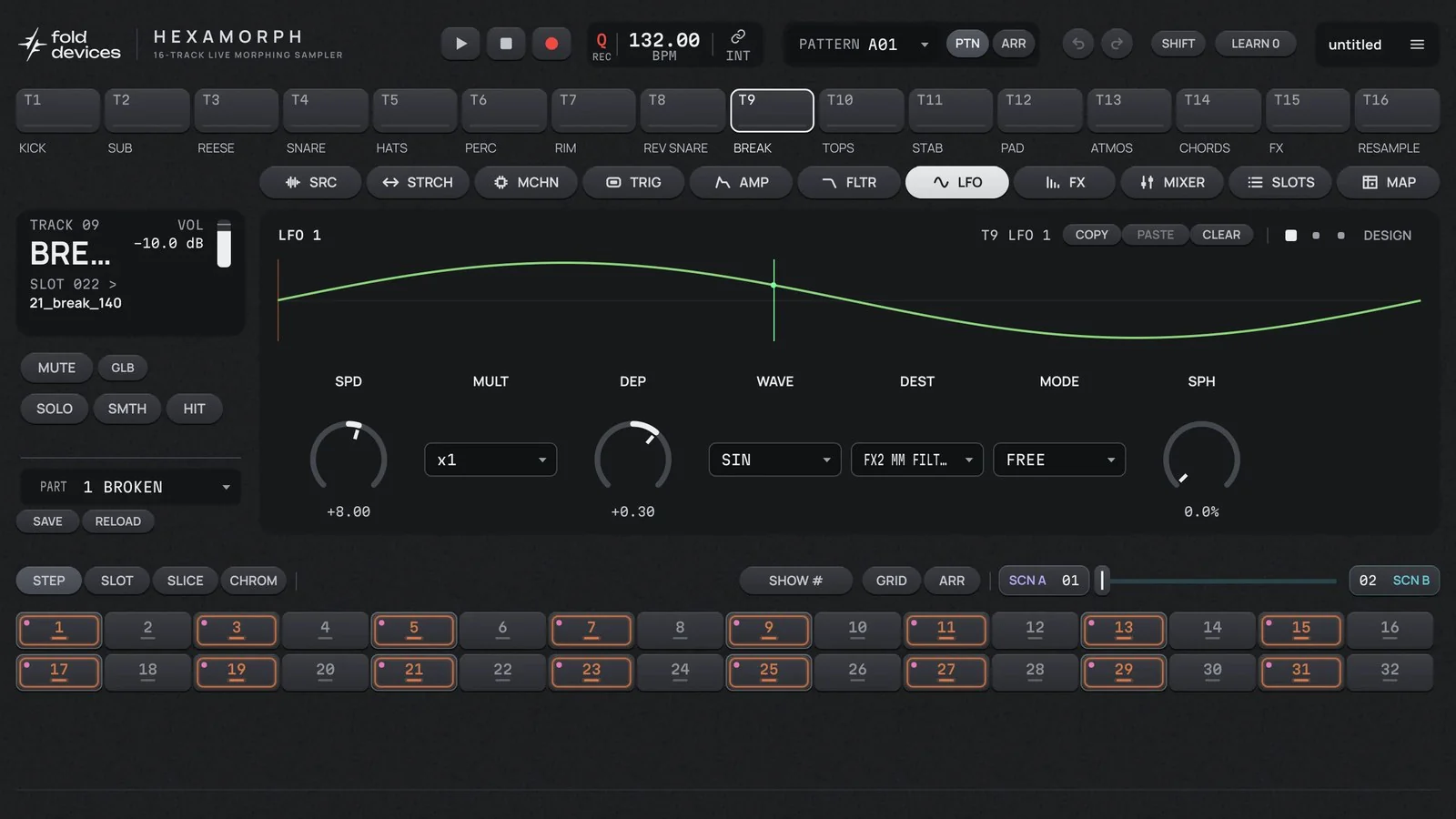
Set it up in four moves:
- In
DESTchoose what to move. The easiest way is to choose LEARN and turn the knob you want on any page. - In
WAVEchoose the shape of the movement. - Raise
DEP(depth) — while it is at zero the LFO does nothing. - Raise
SPD(speed). It is 0 by default, and the LFO stands still. To start, set SPD = 16: with MULT ×8 that is one cycle per beat (4 steps).
| Knob | What it does |
|---|---|
SPD | speed (−64…+64). Negative — the other direction |
MULT | speed multiplier, ×1 to ×2048 |
DEP | depth: how far the knob moves. Negative turns the movement upside down |
WAVE | shape: TRI (back and forth), SAW and RAMP (saw), SQR (hard switching), SIN (smooth), EXP, RND (random), USR1–USR16 (drawn by you) |
DEST | what to move. You can choose almost any knob of the track, including the knobs of the other LFOs |
MODE | how the LFO relates to the hits (see below) |
SPH | where on the wave to start at a hit |
MODE | What happens |
|---|---|
| FREE | the LFO runs by itself; hits don't affect it |
| TRIG | every hit starts the wave from the beginning |
| HOLD | on every hit one value is taken and held until the next hit |
| ONE | a hit starts one cycle, then the LFO stops |
| HALF | a hit starts half a cycle |
LFO speed is tied to the tempo. Multiply SPD by MULT: if you get 128, the LFO makes one cycle per beat (4 steps); 32 — one per bar.
Drawing shapes (DESIGN). The fourth LFO sub-page. A project has 16 shapes of its own (USR1–USR16), shared by all tracks. Pick a shape and draw it point by point with the mouse. A right-click on a point makes the move to the next point a step or a smooth line. The buttons next to it fill the shape with ready-made drawings.
7. The sequencer: steps, trigs and locks
The sequencer is the grid at the bottom of the window. Each key is one step. During playback a light runs across the steps, and a note plays on every step that has a trig. Each track has its own grid — switch tracks with the T1–T16 buttons.
Working with steps
| Action | What happens |
|---|---|
| Click an empty step | place a note (a trig) |
| Click a step with a note | remove the note |
| Right-click a step | set this step up separately (P-LOCK mode, see below) |
| Alt+click | a smooth transition to the next note (SLIDE) |
| Cmd/Ctrl+Alt+click | start recorder recording on this step |
| Cmd/Ctrl+click or drag across steps | select steps to copy or clear them |
| Hover the mouse | the bottom of the window says what is on this step |
| Hold Shift over a step | a window with all the step's details |
Hatched steps are past the end of the track and don't play. Track length is changed on the GRID page (see below).
What the colours and marks on steps mean
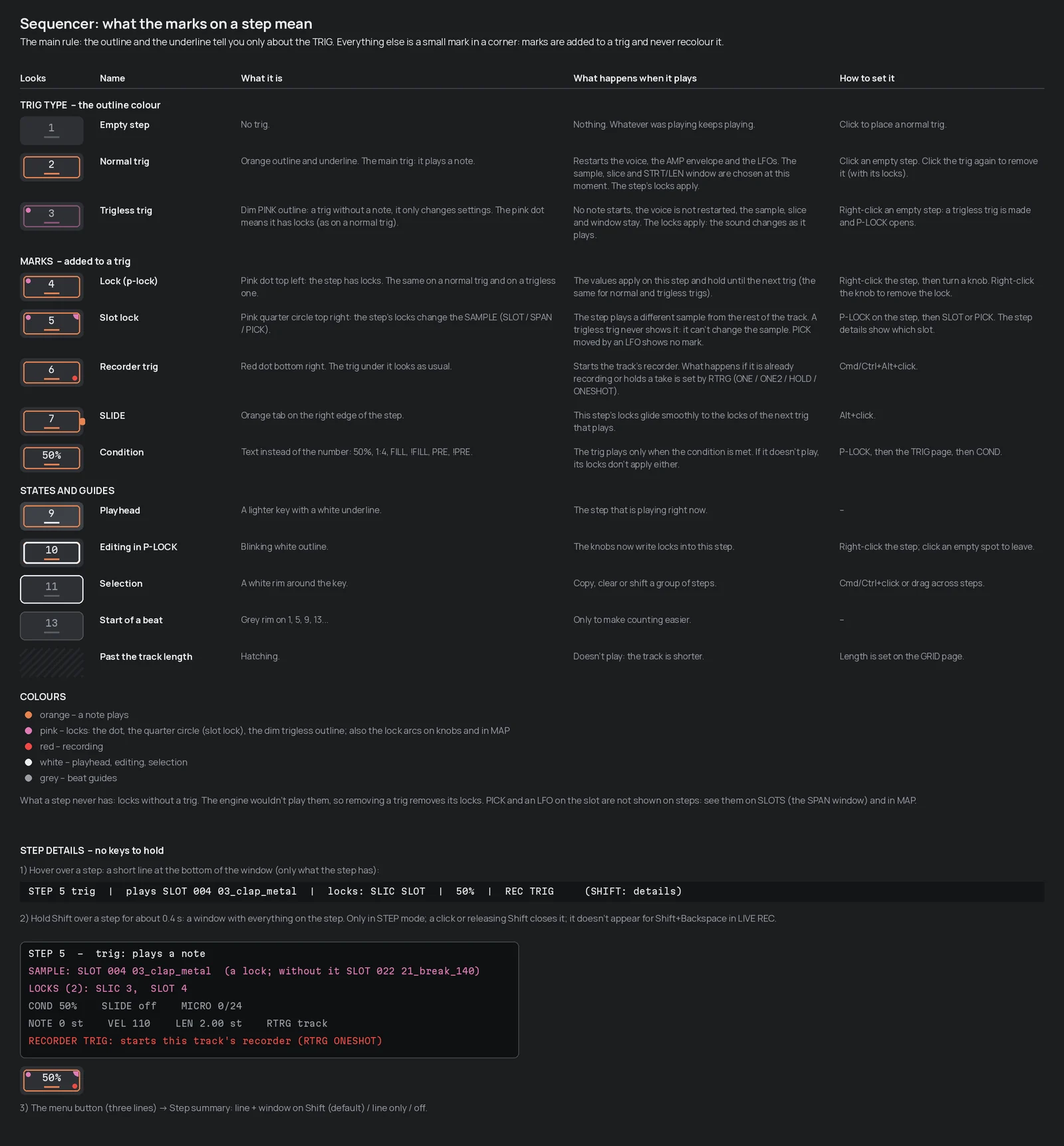
| What you see | Meaning |
|---|---|
| orange outline | the step has a note |
| dim pink outline | a "silent" step: no note, but settings change (see below) |
| pink dot top left | the step has locks |
| pink corner top right | the step plays a different sample |
| red dot bottom right | recorder recording starts on this step |
| orange tab on the right | SLIDE |
| text instead of the number (50%, 1:4, FILL) | the note has a condition |
| blinking white outline | the step is being edited |
| white rim | the step is selected |
| lit key | this step is playing right now |
| grey rim on 1, 5, 9, 13 | start of a beat, to make counting easier |
The SHOW # button changes the labels on the steps: instead of numbers you can see note pitch (NOTE), velocity (VEL), length (LEN), shift (MICRO) or condition (COND).
Locks: a value of its own on one step
A lock is a knob value stored on one step. For example, all the hats sound the same, but the last one in the bar is longer and higher. Almost any knob of the track can be locked, including the sample, the filter and the effects.
How to place a lock:
- Right-click a step. It starts blinking white, and
P-LOCK step Nappears in the header. - Turn any knobs on any pages. They change only for this step and get a pink arc.
- Finish: click an empty part of the window or select another track.
To remove one lock, right-click the knob. To remove all of a step's locks, right-click the same step again.
A lock applies from its step until the next note on the same track. If you remove the note, its locks are removed too.
A "silent" step (trigless). If you right-click an empty step, a dim pink outline appears on it. Such a step doesn't retrigger the note; it only changes the knobs of the one already sounding. For example, a long pad starts on step 1, and on step 9 its filter opens. A trigless step doesn't change the sample or the start point.
SLIDE and SMOOTH. Normally a lock switches instantly. SLIDE (Alt+click on a note) makes the transition to the next note smooth. The SMTH button on the track card makes all of the track's transitions smooth at once.
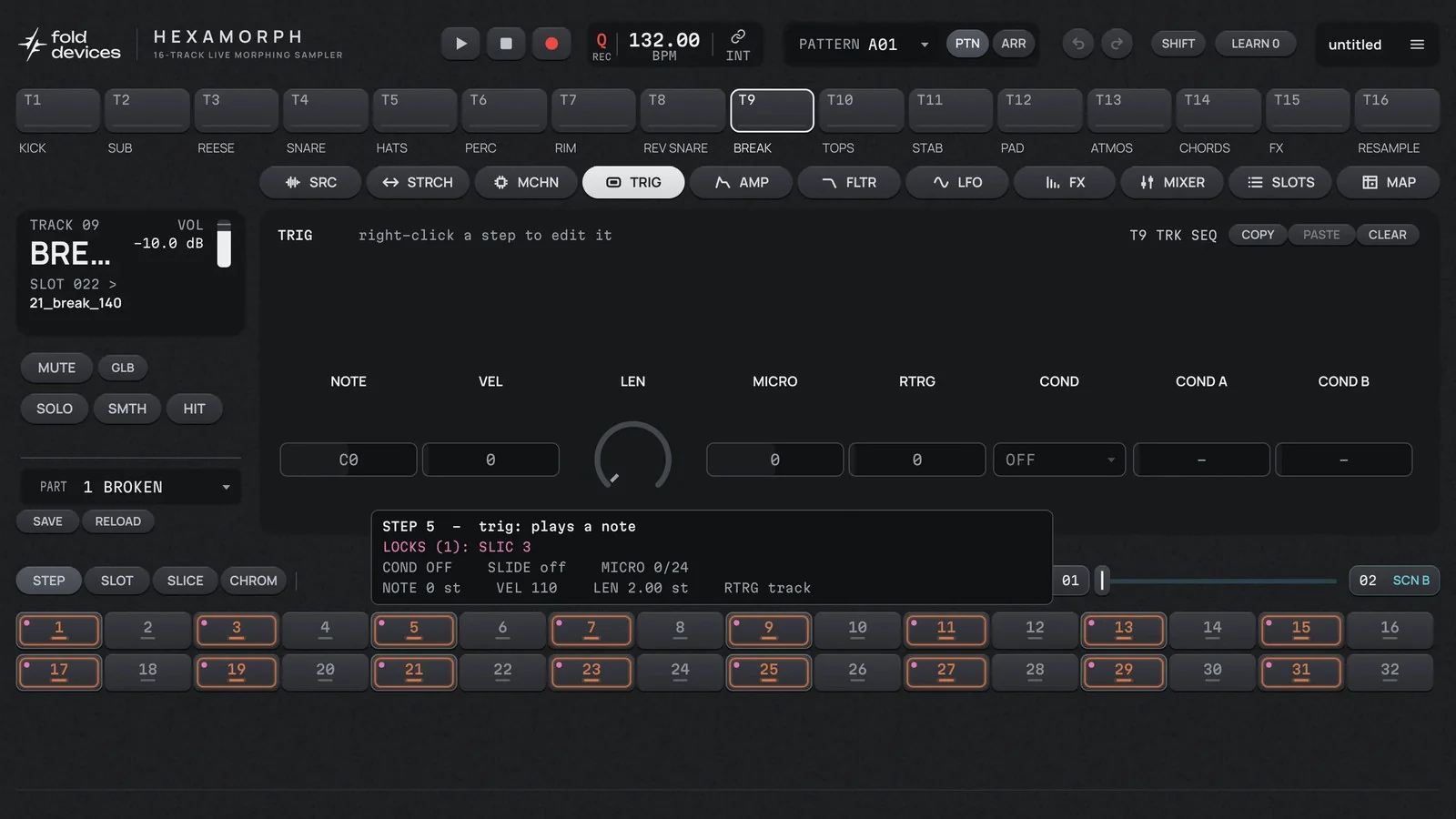
TRIG: note settings
The TRIG page sets up the note on a step itself. First select a step with a right-click, then turn the knobs.
| Knob | What it does |
|---|---|
NOTE | note pitch in semitones (±48). This is how one sample becomes a melody or a bassline |
VEL | velocity, 0–127 |
LEN | note length in steps (fractions allowed). INF — until the next note |
MICRO | shifts the note slightly earlier or later, in 1/24 of a step. Gives a "live" groove |
RTRG | how many times to repeat the note (a roll) |
COND, COND A, COND B | the condition: when the note plays (see below) |
Conditions: a note that doesn't always play
Conditions bring a repeating pattern to life without manual work.
| Condition | When the note plays | Example |
|---|---|---|
| PROB | at random, with the chance from COND A | 50% — plays about half the time |
| A:B | on pass A out of every B | 4:4 — only on every fourth pass |
| FILL | only during a fill (see below) | extra hits at the end of a phrase |
| !FILL | always except during a fill | drop the cymbal during the fill |
| PRE | if the previous note with a condition played | link two random notes |
| !PRE | if the previous one did not play | either one or the other plays |
FILL turns on by itself. By default on every fourth pass of the pattern. Set this in FILL EVERY on the GRID page: every 2nd, 4th, 8th or 16th pass, or OFF — never.
GRID: length, speed, swing
The GRID button above the grid opens the pattern settings.
| Setting | What it does |
|---|---|
| MODE | PATTERN — all tracks have the same length. TRACK — each track has its own |
| LEN | length in steps, up to 128 |
| SPEED | step speed against the tempo: 2x, 3/2x, 1x, 3/4x, 1/2x, 1/4x, 1/8x. 1x — a step is a 1/16 note, 2x — twice as fast, 1/2x — half as fast, 3/2x and 3/4x — triplets |
| M.LEN | (in TRACK mode) after how many steps all tracks return to the start together. INF — never |
| CH.LEN | when a pattern change happens: after this many steps. AUTO — when the pattern finishes |
| SWING | swing: shifts every second step. 50% — straight, 66% — triplet shuffle |
| FILL EVERY | how often FILL turns on |
| PATTERN CHANGE, TAIL, PART | what happens on a pattern or part change (section 8) |
Different track lengths. In TRACK mode give the kick 16 steps and the hat 12. The hat shifts against the kick every bar, and the pattern keeps changing. To bring everything back to the start, set M.LEN, for example to 64 (four bars).
Live recording
Instead of clicking steps, you can play by hand. Press the red record button at the top and PLAY, then play: with the HIT button, the computer keyboard, a MIDI keyboard or the grid keys. Everything you play is recorded into the pattern. If you turn a knob while recording, its movement is recorded as locks too.
Qon: notes land exactly on steps. Off: your exact timing is kept.- Hold Backspace to erase notes where playback passes. Shift+Backspace erases only recorded knob movements.
- Each pass of the pattern is undone with one Cmd/Ctrl+Z.
CHROM: playing melodies
Press CHROM above the grid — the keys become a piano, and the track plays the sample at different pitches. The arrows change the octave. The SLOT / SLICE switch chooses whether to play the whole sample or one slice. While recording, notes are recorded into the pattern; in P-LOCK mode a key sets the pitch of the selected step.
Copying
The COPY, PASTE, CLEAR buttons in the page header work on whatever is on screen. Next to them it says what exactly will be copied:
- steps are selected — those steps;
TRIGis open — all of the track's notes;GRIDis open — the whole pattern;- a sound page is open (
SRC,AMP,FLTR,LFO,FX…) — the settings of that page.
That way you can, for example, copy the filter settings from one track to another.
Everything you can copy. The rule is the same everywhere: Copy remembers, Paste inserts where you are now, Clear returns to the default values. The plugin remembers only the last thing copied, and you can only paste it into the same kind of thing: FLTR settings onto another track's FLTR page, a scene into a scene. Any paste or clear can be undone with Cmd/Ctrl+Z.
| What | Where to copy it |
|---|---|
| Several steps | select them (Cmd/Ctrl+click or drag) → COPY. Then select the step to paste from → PASTE |
| All of a track's notes | COPY on the TRIG page, or right-click the track button → SEQUENCE |
| A track's whole sound | right-click the track button → SOUND |
| The settings of one page (SRC, STRCH, MCHN, AMP, FLTR) | COPY on that page |
| One LFO | COPY on the LFO page with that LFO open |
| One effect or the whole 1–4 chain | right-click the slot tab on the FX page. The effect type is copied along with the values |
| A scene | right-click SCN A or SCN B, or COPY in scene editing mode |
| A part | right-click the PART field |
| A pattern | right-click the PATTERN field, or COPY on the GRID page |
| Arrangement rows | COPY, PASTE and DUPLICATE under the ARR table (section 10) |
8. Patterns and parts
A reminder: a pattern is the notes, a part is the sounds. Changing patterns takes you from verse to chorus. Changing parts changes the set of sounds. Both changes happen on time, without stopping the music.
Switching patterns
- Click the
PATTERNfield at the top. A grid opens: banks A–H at the top, the bank's 16 patterns below. - Click the pattern you want. If music is playing, it starts when the current one finishes.
- Shift+click switches immediately, without waiting for the end.
To make the change happen, say, exactly after 4 bars, set CH.LEN = 64 on the GRID page.
Right-clicking the PATTERN field lets you copy, paste or clear a pattern. A handy way to make a variation: copy A01 to A02 and change a couple of notes in the copy.
What happens to sounding notes on a change
The PATTERN CHANGE setting on the GRID page:
- CUT — everything that was sounding in the old pattern is cut off.
- HOLD — notes keep sounding until the new pattern plays a note of its own on that track. Good for long pads. If the new pattern plays a different part, such a track also keeps its old part's sound until then. To switch it to the new part earlier, Shift+click its button;
RELEASE ALLdoes it for all tracks at once.
Reverb and delay tails are not cut off on a part change; they fade out smoothly. TAIL sets how long they last (50 ms to 5 s, FULL — until they die out by themselves). KILL TAILS silences all tails at once.
Parts
A part is the sound of all 16 tracks: samples, filters, effects, levels, scenes and track names. Each bank has 8 parts.
- Choose a part for the pattern: the arrow next to the
PARTfield on the track card. A star next to a part means it has unsaved changes. - Rename: just type a name into the
PARTfield. - Copy: right-click the
PARTfield → Copy, then on another part → Paste.
Track names are stored in the part: when the part changes, they change too.
SAVE and RELOAD: bring the sound back
SAVE stores the part as it is now. RELOAD returns it to exactly that state.
This is very handy on stage: press SAVE, turn everything you like, and when you want to go back, press RELOAD. While music is playing, RELOAD happens in time (when exactly — see below); Shift+click brings it back immediately.
A part's SAVE does not save the project to disk. It is a restore point inside the project.
When a part change happens
The PART setting on the GRID page:
| Value | When |
|---|---|
| AS PATTERN | at the same moment a pattern change would happen |
| NOW | immediately |
| 1 STEP, 4 STEPS, 16 STEPS | on the nearest step, beat or bar |
The pattern keeps playing from the same place — only the sound changes.
9. Effects and mixer
In Hexamorph you can place effects in three places:
- on a track — up to four, in a row. They affect only that track;
- on the shared buses A and B — one effect each. You can send part of any track's sound to them. Usually a reverb and a delay go there, so all tracks sound "in the same room";
- on the master — four effects and a limiter on the whole mix.
Any effect can go in any of these places. Every effect knob can be locked on a step, stored in a scene and moved by an LFO.
Track effects (FX)
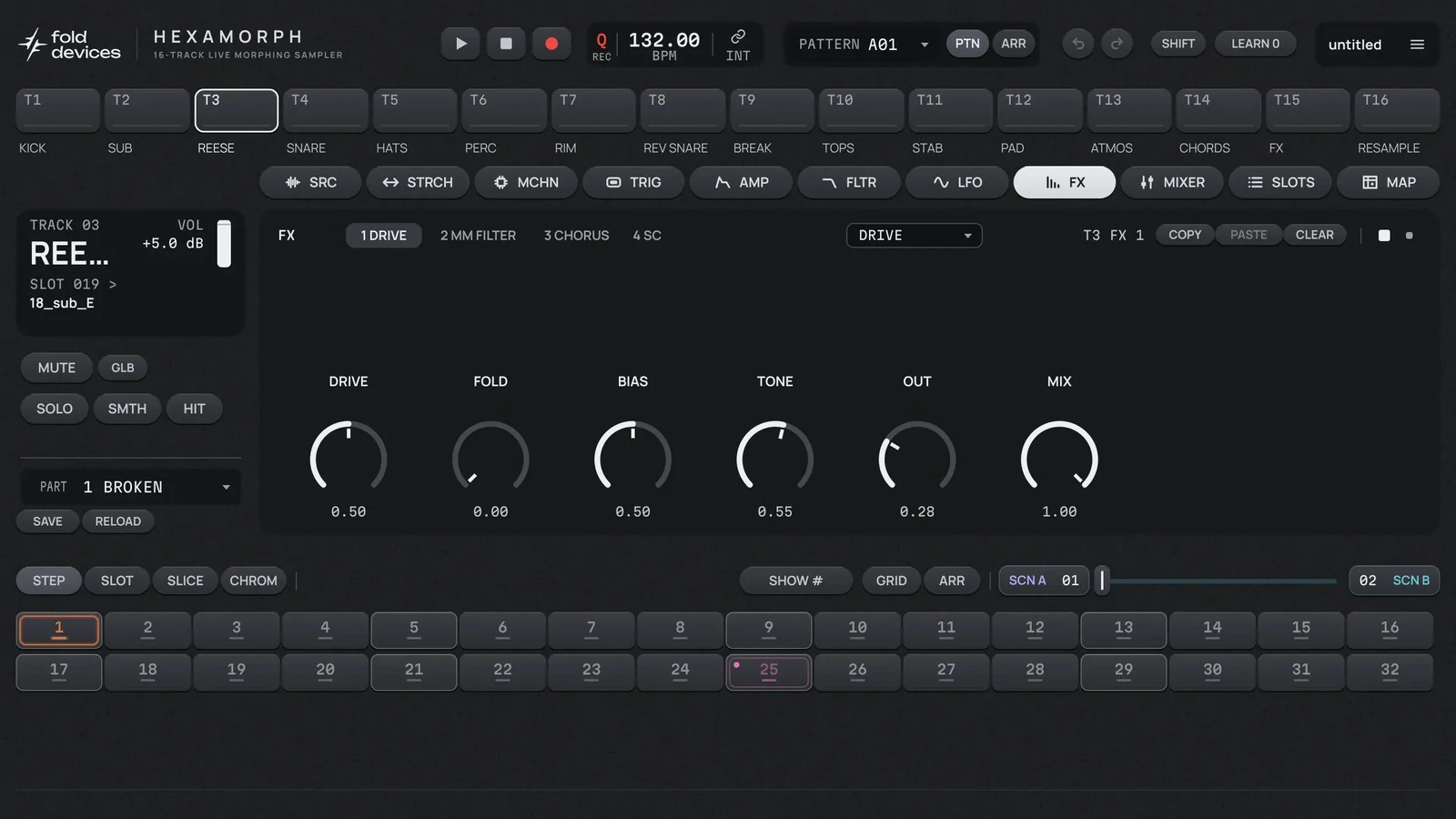
- Open the
FXpage. At the top are four tabs — slots 1–4; each says which effect is in it. - Select a slot and choose an effect from the list on the right.
- Raise
MIX(orSEND). A new effect changes nothing until you turn it up.
Some effects have a second settings page, SETUP, where you choose how it works. Switch to it with the two small squares on the right or by double-clicking the slot tab. Sound passes through the slots in order: 1 → 2 → 3 → 4.
The effects
| Effect | What it does | Knobs (main / SETUP) |
|---|---|---|
| FILTER | a simple filter with drive | FREQ, RESO, TYPE, DRIVE, WIDTH, MIX / SLOPE |
| MM FILTER | a filter with its own envelope: opens on every hit | BASE, WDTH, Q, DEP, ATK, DEC, MIX / HP, LP, ENV, HOLD, Q, DIST |
| COMB FLT | a comb filter: turns noise or drums into a metallic tone at the note you want | PTCH, TUNE, LP, FB, SPRD, MIX /MOD, MSPD |
| EQ | a two-band equaliser: boost or cut the frequencies you need | FRQ1, GN1, Q1, FRQ2, GN2, Q2 /TYP1, TYP2 |
| DJ EQ | three bands, like on a DJ mixer: remove the bass, mids or highs | LO, MID, HI, LOFRQ, HIFRQ, MIX |
| COMP | a compressor: evens out the level, makes the sound denser | ATK, REL, THRS, RAT, GAIN, MIX /RMS, KNEE |
| SIDECHAIN | ducks the track when another one plays (for example, bass under the kick). See below | THRES, ATK, RATIO, REL, FREQ, MIX, RANGE / MODE, SRC, BAND, SHAPE |
| LIMITER | stops the sound from getting louder than a set level | GAIN, CEIL, REL |
| DRIVE | overdrive and distortion | DRIVE, FOLD, BIAS, TONE, OUT, MIX |
| CHORUS | makes the sound wider and "floating" | RATE, DEPTH, DELAY, FDBK, SPRD, MIX, TAPS, FBLP |
| FLANGER | a sweeping "jet" sound | DEL, DEP, SPD, FB, WID, MIX |
| PHASER | a soft swirling movement in the sound | RATE, DEPTH, CENTR, FDBK, NUM, MIX, WID |
| SPATIAL | widens the stereo image | INP, DPTH, WDTH, HP, LP, SEND /PHSE, M/S, MG, SG |
| DELAY | echoes in time with the music | TIME, FDBK, TONE, BASE, WIDTH, MIX / PPONG, TAPE, DIR, SYNC, LOCK, PASS |
| REVERB | reverb: the sound in a room | PRE, SIZE, DAMP, LOCUT, WIDTH, MIX |
| PLATE REV | a bright, smooth reverb | TIME, DAMP, GATE, HP, LP, MIX /GVOL, BAL, MONO, MIXF |
| SPRING REV | a spring reverb, like in old amplifiers | TIME, HP, LP, MIX / TYPE, BAL |
| DARK REV | a dark, long reverb with shimmer | TIME, SHVG, SHVF, HP, LP, MIX /PRE, BAL, MONO, MIXF |
Under every knob is its value in readable units. A double-click returns the knob to its initial position.
SIDECHAIN: bass under the kick
SIDECHAIN ducks a track when another track plays. This is how the "breathing" bass and pads of dance music are made.
- Put SIDECHAIN in an effect slot on the bass.
- On SETUP, choose the kick track (T1) in
SRC. - In
MODEchoose TRIG (react to the kick's notes) or AUDIO (react to its sound). - On the main page raise
MIXand set the depth (DEPTHorTHRES) andREL— how fast the bass comes back.
BAND chooses what to duck: only the lows (LOW), only the highs (HIGH) or everything (FULL). SHAPE is the shape of the return: EXP, LIN, SLOW, PUMP, GATE, DOUBLE or one of your drawn USR shapes.
The mixer (MIXER)
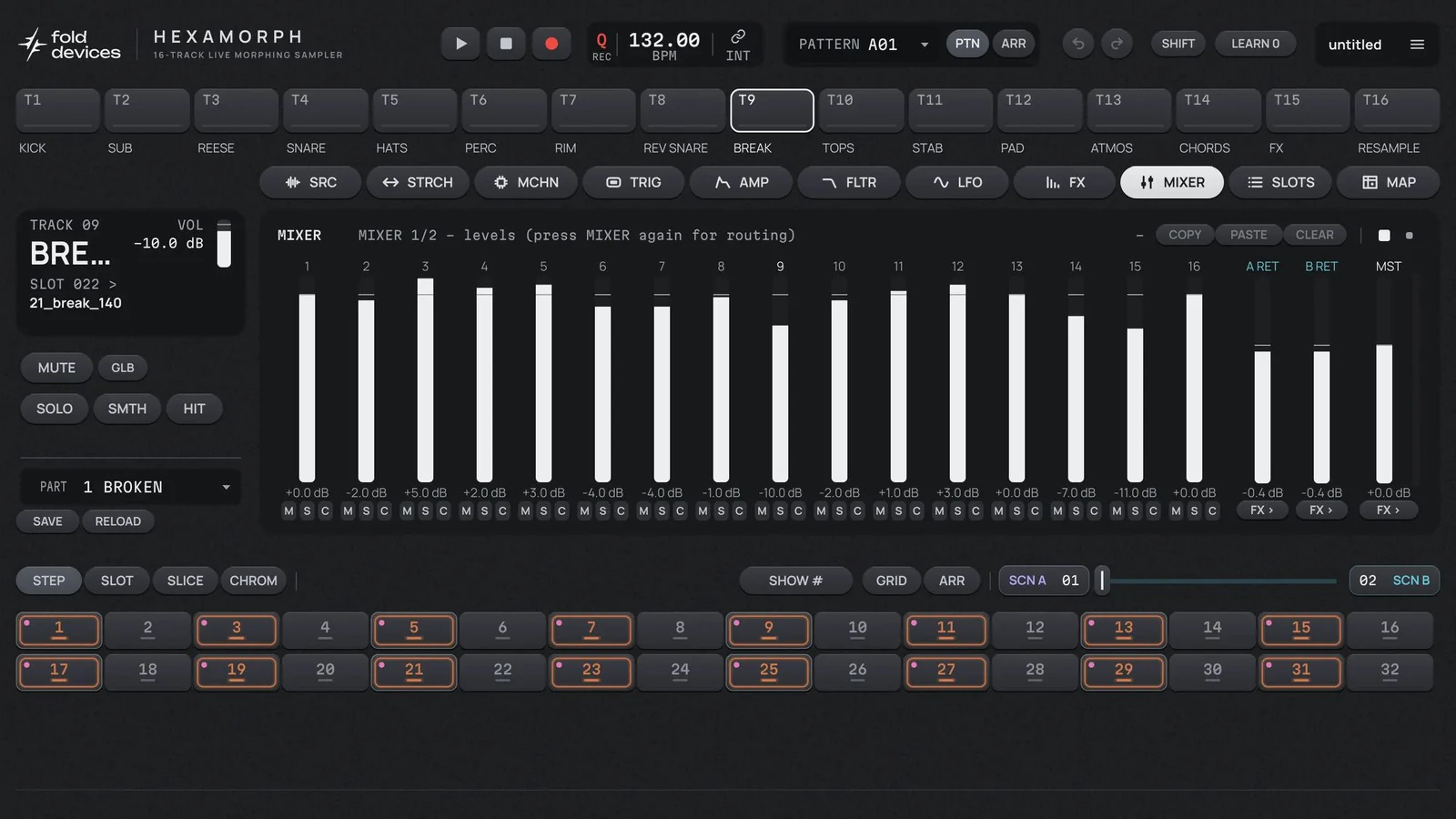
The first mixer page holds the levels of all 16 tracks. Under each fader are buttons:
M— mute the track;S— listen to this track only;C— send the track to the headphones (the separate CUE output, see section 11).
On the right are the faders of buses A and B (A RET, B RET) and the master level (MST). The FX > buttons under them open the bus or master effects.
Press MIXER again to open the second page:
| Control | What it does |
|---|---|
X (button) | whether the track follows the crossfader (XFADE). Turn it off so the crossfader leaves the track alone |
MAIN (button) | whether the track goes to the main mix. Off, it still feeds its own T output and the sends |
SNDA, SNDB (knobs) | how much of the track to send to buses A and B |
Buses A and B
A bus is one effect shared by all tracks. For example, put a reverb on bus A and raise SNDA on the tracks that need reverb.
To choose a bus effect, press FX > under its fader. To get back to the faders — < or Esc.
A bus has an "owner" setting (OWN A, OWN B). The owner track can lock the bus effect's knobs on its own steps or move them with its LFOs. For example, make the snare track the owner, and the delay can get longer on one of its hits.
Master
The master is the overall sound of the whole project. Its settings are the same for the whole project and don't change with the part. Open it with the FX > button under the MST fader.
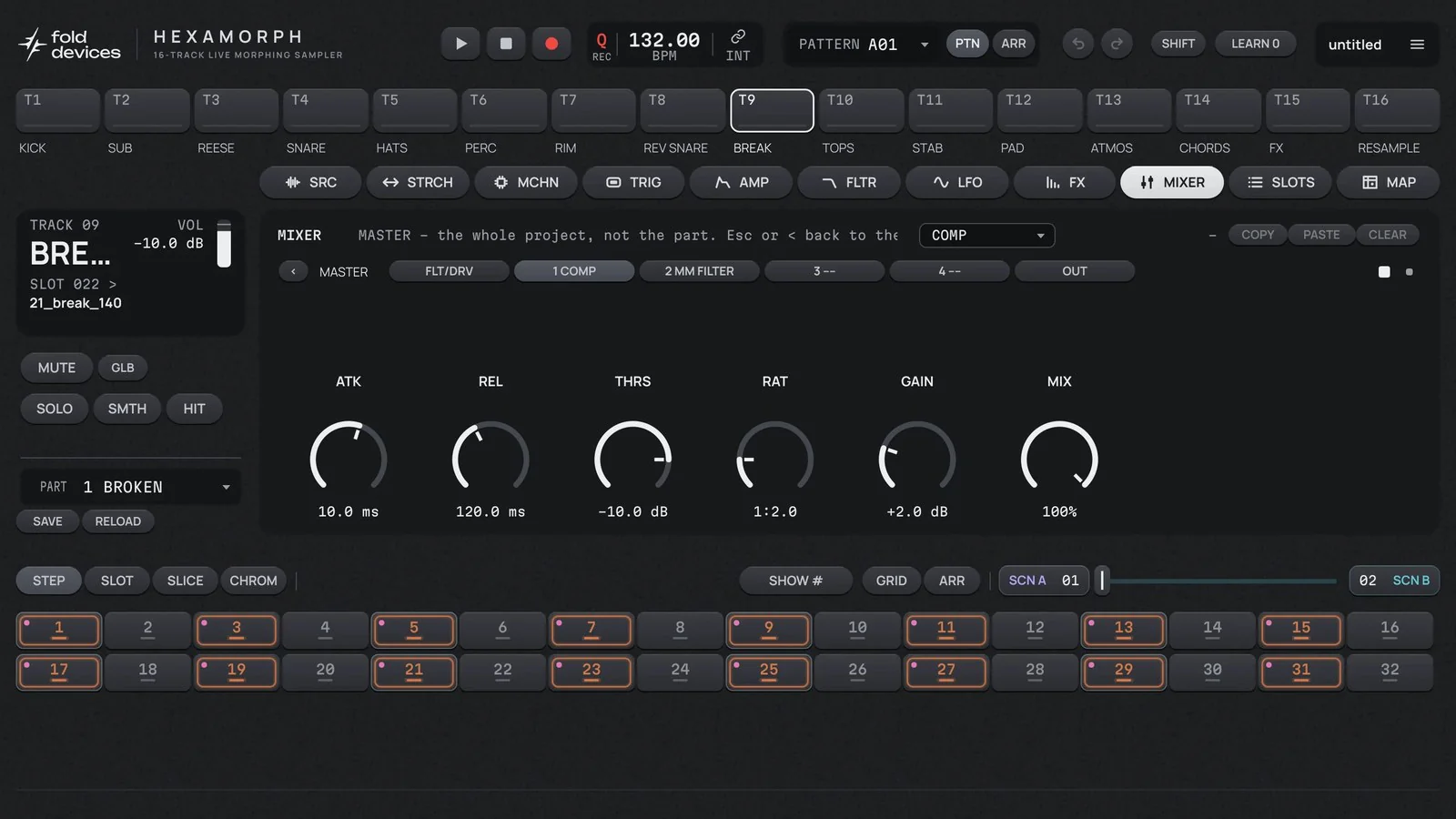
Sound flows left to right across the tiles:
FLT/DRV— the master filter and drive.LPcuts the highs,HPthe lows,RESis resonance, andRES ONdecides which of them gets the resonance: LP, HP or BOTH.DRIVEis overdrive.DIR ABandDIR CDare here too — how much of the plugin inputs to mix straight into the main mix.1–4— four effect slots.OUT— master level (VOL) and the limiter (LIMITER,GAIN,CEILING,REL). The limiter is off by default. Turn it on to make sure the mix never clips.
Sound character (CHARACTER)
In the ☰ → CHARACTER menu you can choose the overall character of the project's sound:
- CLEAN — a clean sound, nothing distorts.
- HARDWARE — a harder "hardware" character: loud peaks are clipped, filters and effects sound dirtier.
In the ADVANCED submenu these differences can be switched on one by one.
The whole signal path
All 16 tracks are built the same way. The diagram shows one track and where its sound goes.
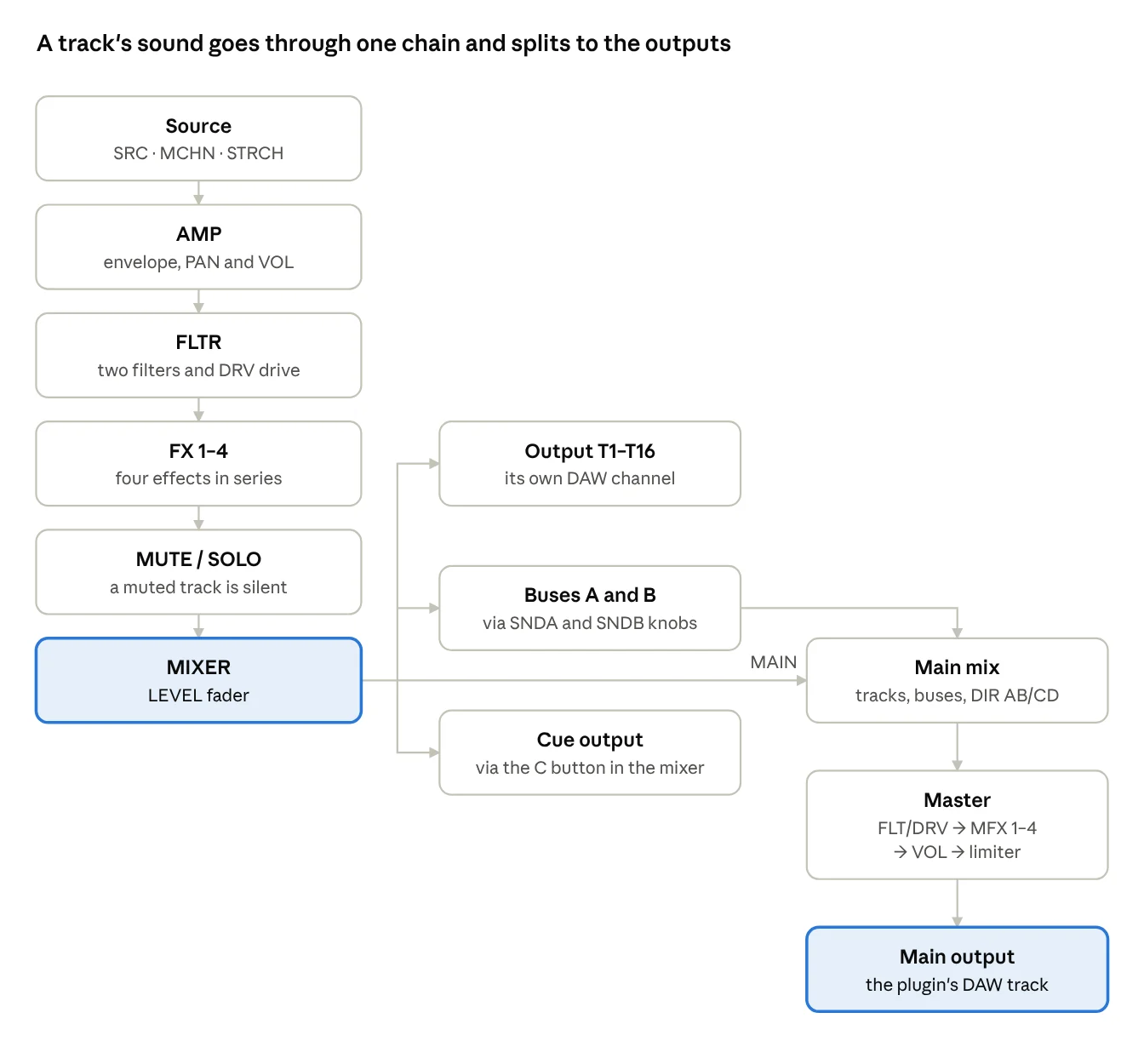
Worth remembering:
- Inside a track the order is always the same: source → AMP → filters → effects → mixer. So VOL on AMP drives the sound into the filter and effects, while LEVEL in the mixer only makes the track quieter or louder in the mix.
- The extra filter (BASE, WDTH) sits before or after the main one — BW.RT decides.
- A track's T output takes the sound after the mixer, but without the buses and the master. The MAIN button doesn't affect it (section 11).
- Neither the buses nor the master go to the Cue output: it carries only the tracks with the C button on.
- The limiter comes last, after the master level, so its ceiling is the ceiling of everything that leaves the plugin.
- A recorder with RSRC = MAIN records the finished mix, after the master and the limiter.
10. Performance: scenes, mutes, arrangement
Scenes and the crossfader
A scene is a stored variation of the sound. For example: "filters closed, more delay, bass quieter". A scene remembers only the knobs you stored in it, and it can change many tracks at once.
Scene A sits at the left end of the crossfader, scene B at the right. Moving the slider takes you smoothly from one sound to the other. Each part has 16 scenes.
How to make a scene:
- Press
SCN AorSCN B(or hold key 1 or 2). The button lights up. - The first row of the grid shows 16 keys — these are the scenes. Click one to choose which scene sits at this end of the crossfader.
- Turn any knobs on any tracks. They are stored in the scene, and the track's normal sound doesn't change.
- Leave: press the button again, press Esc, or release the key.
- Move the crossfader.
A good trick: leave scene A empty (the normal sound) and store the climax in scene B. Then the crossfader works as the track's "build-up" knob.
Good to know:
- Knobs with continuous values glide smoothly. Switches (for example, the filter type) flip at the midpoint.
- If a knob is in a scene and also locked on a step, the scene wins.
- To keep the crossfader away from a track, turn its
X(XFADE) button off on the second mixer page. - Right-click
SCN AorSCN Bto copy, paste or clear a scene. - The crossfader can be controlled from a MIDI controller or by DAW automation (section 11).
MAP: what is stored in scenes and locks
The MAP page shows everything as a table. It is handy when you have many scenes and locks and need to see what is where.
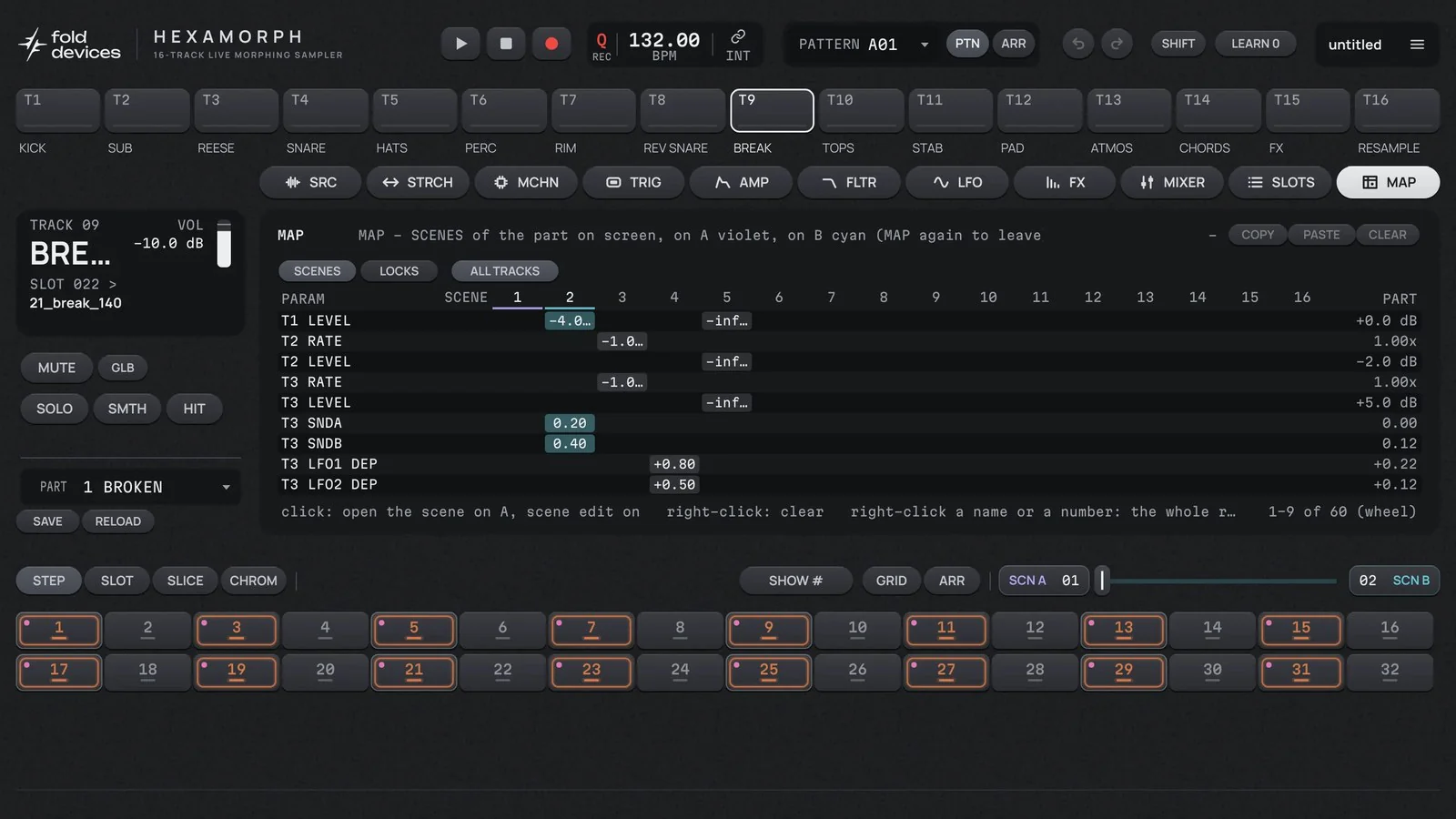
- SCENES — rows are knobs, columns are scenes 1–16. On the right is the knob's normal value. The
ALL TRACKSbutton shows all tracks or only the selected one. - LOCKS — all of the selected track's locks, by step.
A click on a cell takes you to where the value can be changed. A right-click deletes the value. A right-click on a row name or column number clears the whole row or column. To leave, press MAP again.
Muting tracks (MUTE and SOLO)
MUTE silences a track, SOLO leaves only that track audible. Shift+click on SOLO adds another track to the soloed ones. Muting is smooth and click-free, and the track keeps playing silently, so when you unmute it comes back right on the beat.
The button next to MUTE switches which mutes you are changing:
- GLB — for all patterns. A muted track stays muted whatever pattern plays. Handy on stage.
- PTN — only for the current pattern. Saved in the pattern — handy while you build a track.
A track is silent if it is muted in either of the two modes.
Arrangement: putting patterns together into a track
An arrangement is a list of "what to play and in what order": for example, A01 four times, then A02 twice, then A01 again. A project can have 8 such lists.
- Press
ARRabove the grid — the arrangement table opens. + PATTERNadds a row with the current pattern at the end.- In a row you can change the pattern and the number of repeats: with the mouse wheel or by typing a number.
- At the top switch
PTNtoARRand pressPLAY— the whole arrangement plays.
| Column | What it sets |
|---|---|
| LABEL | a label for yourself, for example "Verse" or "Break" |
| CMD | the row type: PATTERN — play a pattern, LOOP — go back a number of times, JUMP — go to a row, HALT — stop |
| PAT | which pattern |
| REP | how many times to repeat (1–99) |
| OFS, LEN | which step to start from and how many steps to play — you don't have to play the whole pattern |
| BPM | change the tempo on this row |
| TRN | transpose everything by a number of semitones |
| SCN A, SCN B | which scenes to put on the crossfader |
| MUTES | which tracks to mute or unmute on this row |
The buttons under the table: INSERT (insert a row), DELETE, DUPLICATE, COPY, PASTE. A double-click on a row number moves playback to it; Shift+click selects several rows. When it reaches the end, the arrangement starts over (unless there is a HALT).
11. Working in a DAW
Tempo and transport: INT or HOST
Next to the tempo is the INT / HOST switch (click to switch):
- HOST — Hexamorph follows the DAW: it takes the DAW's tempo and plays when you press Play in the DAW. This is what you want most of the time.
- INT — Hexamorph has its own tempo and its own
PLAYbutton; the DAW doesn't affect it. Handy for playing with a pattern without running the whole DAW project. In the standalone app there is nothing to follow, so it is always INT and the switch is disabled. A project with HOST opened in the app also plays on INT and is saved that way.
Where the sound goes: the plugin outputs
By default Hexamorph behaves like a normal instrument: all 16 tracks are mixed and come out as one stereo pair on the channel the plugin sits on. This is the Main output.
But the plugin has additional outputs too. You won't find them in the plugin window — they appear in the DAW's routing settings, where you choose where a channel takes its sound from.
| Output | What it carries |
|---|---|
| Main | the main mix with the master effects. Always on |
| Cue | the tracks with the C button on in the mixer. For example, to preview something in headphones |
| T1–T16 | each track separately. T1 is track 1, T5 is track 5, and so on |
Each track on its own DAW channel (outputs T1–T16)
Why you'd want this: to put your own DAW plugins on the kick or bass, mix them separately, or record each track to its own audio file (stems).
Example in Ableton Live — send the kick on track 5 to its own channel:
- Hexamorph is on a MIDI track, for example "1 Hexamorph".
- Create a new audio track (Create → Insert Audio Track).
- In its routing section (In/Out; if you can't see it, turn on View → In/Out), in the first Audio From list choose "1 Hexamorph".
- In the list below it choose T5. This is where the T1–T16 outputs live. Ableton enables that output on the plugin by itself.
- Set the audio track's Monitor to In.
- In Hexamorph open the mixer and turn off the
MAINbutton on track 5. Now the kick sounds only from the new track, not twice.
Repeat for any other tracks. To record a stem, arm recording on that audio track.
In other DAWs the idea is the same; only the names change. Look up "multi-output instruments" in your DAW's help: you need to enable the plugin's extra outputs and create channels for them.
Good to know:
- A T output carries the track's sound after its effects and level. The master effects and sends are not included.
- A muted track is silent on its own output too.
- The
MAINbutton affects only the main mix. The T output works whatever its position. - If a track is fed into another track through NEIGH, it sends nothing to its own output — you hear it on the receiving track's output.
Inputs: getting sound into the plugin
The plugin has two stereo inputs: In A/B (on by default) and In C/D (enabled in the DAW when needed). The THRU and PICKUP machines and the recorders listen to them. In most DAWs the sound of another channel comes in here through the sidechain (in Ableton, the Sidechain list in the plugin header). If there is silence at the input, the plugin shows a NO INPUT hint.
MIDI notes
Notes coming into the plugin (from a keyboard or a MIDI clip in the DAW) play the tracks. How exactly is set in the project menu, item MIDI notes:
| Mode | How it works | When it's handy |
|---|---|---|
| AUTO | any note plays the currently selected track. Middle C (C3 / note 60) plays the original pitch, higher and lower notes transpose | playing a sample on the keyboard as a melody |
| CHANNELS | MIDI channel 1 plays track 1, channel 2 plays track 2… Pitch as in AUTO | controlling several tracks from different clips |
| PADS | the note chooses the track: 16 consecutive notes = 16 tracks, no transposition | playing tracks from pads, like a drum machine |
Notes you play can be recorded into the pattern with LIVE REC (see the sequencer section).
Which note plays which track in PADS. The tracks repeat every 16 notes: note 0 — T1, note 1 — T2, … note 15 — T16, note 16 — T1 again. It's easiest to start at note 48:
| Note number | 48 | 49 | 50 | 51 | 52 | 53 | 54 | 5 |
|---|---|---|---|---|---|---|---|---|
| Name in Ableton | C2 | C#2 | D2 | D#2 | E2 | F2 | F#2 | G2 |
| Track | T1 | T2 | T3 | T4 | T5 | T6 | T7 | T8 |
| Note number | 56 | 57 | 58 | 59 | 60 | 61 | 62 | 63 |
|---|---|---|---|---|---|---|---|---|
| Name in Ableton | G#2 | A2 | A#2 | B2 | C3 | C#3 | D3 | D#3 |
| Track | T9 | T10 | T11 | T12 | T13 | T14 | T15 | T16 |
Different DAWs name the same note differently (note 60 is C3 in Ableton and C4 in many others), so go by the number. Many pad controllers start at note 36 — then the first pad plays T5. To make the first pad play T1, shift the controller up an octave (to note 48) or down by four notes (to note 32).
In AUTO and CHANNELS modes note 60 plays the sample at its original pitch, and each neighbouring note is a semitone higher or lower. In all modes the note velocity becomes the hit velocity.
Controlling knobs from a MIDI controller (LEARN)
Any knob in the plugin can be mapped to a knob on your controller:
- Press the
LEARNbutton. It changes toTURN KNOB. - Turn the knob you want in the plugin. The label changes to
MOVE CC. - Turn the knob on your controller. Done.
- Press
LEARNagain to leave.
The number on the button (LEARN 3) is how many knobs are already mapped. Mappings are saved with the DAW project.
To clear all mappings, choose ☰ → Forget all MIDI LEARN bindings. If you map the same controller knob again, it simply moves to the new plugin knob.
Automation from the DAW
The DAW automation list deliberately has only a few items, so it is easy to find your way around:
| Parameter | What it does |
|---|---|
| Crossfader | the crossfader position between scenes A and B |
| Master Trim | overall level on top of the project settings |
| Pattern | which pattern plays (A01…H16) — you can switch patterns right from the DAW arrangement |
| Scene A, Scene B | which scenes are at the ends of the crossfader |
Everything else is controlled with scenes, locks and LFOs inside the plugin, or through LEARN.
Saving with the DAW project
When you save the DAW project, the whole state of Hexamorph is saved with it: patterns, parts, scenes, LEARN mappings. The samples themselves are stored as links to files. If you plan to move the project to another computer, save it with project menu → Collect samples and save — then all samples are copied into the project folder.
12. Recipes
Here are complete ways of working, start to finish. Each recipe relies on the sections above — if something is unclear, look there.
Process a DAW track through Hexamorph
Any sound from the DAW — a vocal, a synth, a whole drum group — can run through Hexamorph's filters, effects, locks and crossfader.
- Put Hexamorph on a MIDI track.
- Feed the sound of the track you want into the plugin through the sidechain (in Ableton, the Sidechain list in the plugin header). The sound arrives at input In A/B.
- Pick a free track. On the MCHN page set
MCHN= THRU andTIN= A+B. A THRU track passes sound all the time; you don't need to place notes. - Make sure the source track doesn't also go to the DAW master on its own, or you'll hear the dry sound as well.
- From here on it's like any other track: effects on FX, an LFO on the filter, scene B with a closed filter and a long delay under the crossfader.
If you just want the input sound in the mix, without processing by a track, raise DIR AB on the master (section 9).
Live looper
Record loops from a synth or a microphone while you play, and layer overdubs.
- Feed sound to the plugin input, as in the previous recipe.
- On a free track open MCHN:
MCHN= PICKUP,RSRC= IN A+B. - Start PLAY and press
REC. The track records a piece and immediately starts repeating it in time. - Press
RECagain to layer a new overdub. To have a new take replace the old one rather than add to it, setOP= REPL. CLEAR— start over. For a second, independent loop do the same on another track.- When you like the result, save the project with ☰ → Save (Save as… the first time). Otherwise the takes are lost when you close the DAW (section 2, "How your data is stored").
Rebuild a break
- Drag a break onto the T1 button. On the STRCH page set
TSTR= BEATS so it plays at the project tempo. - On SRC press
EDIT, thenTRANSIENTS(cut at the hits) or16, thenBACK. - On the third SRC sub-page set
SLICE= ON. - Switch the grid to SLICE mode: the keys at the bottom become slices. Turn on recording and PLAY, and play your own order of hits. Or place notes and lock different
SLICvalues on them. - For rolls on single steps, lock
RTRGon the TRIG page. For a live feel, give a couple of hits a PROB 50% condition. - Store
TSTR= RPT andBGRD= 1/16 in scene B. Now moving the crossfader right turns the break into a stutter.
Play a live set
- Lay the track out across patterns: intro, main section, break. One bank per piece, so its patterns and parts sit together.
- Before the show, press
SAVEon each part. Now you can turn anything you like:RELOADbrings the sound back in time. - Switch mutes to GLB mode — then a muted track won't come back by itself on a pattern change.
- Pick the next pattern in advance — it starts at the end of the current one. Shift+click switches immediately.
- Build up and release with the crossfader: scene A is the normal sound, scene B the climax.
- Map the crossfader and the main knobs to a controller with LEARN (section 11) — a mouse is awkward on stage.
Record stems or resample the mix
- Stems in the DAW. Route the tracks you need to outputs T1–T16 and record each onto its own audio track (section 11). Note that the T outputs don't carry buses A/B or the master. Record the shared reverb and delay separately from the Main output, with the tracks muted there.
- Resample inside the plugin. A recorder with
RSRC= MAIN records the finished mix;RSRC= T1…T16 records one track. You can play the take straight away with the FLEX machine, slice it and turn it into a sample withTO SLOT(example in section 6). The "After a take… mute that track" menu item mutes the source track for you, so the sound isn't doubled.
13. Appendices
A. All pages at a glance
| Page | What's there | Section |
|---|---|---|
| SRC | how the sample plays: pitch, direction, start, loop, slot choice | 6 |
| STRCH | stretching to the tempo without changing pitch | 6 |
| MCHN | the track type (machine), recorder, looper | 6 |
| TRIG | the note on a step: NOTE, VEL, LEN, MICRO, RTRG, conditions | 7 |
| AMP | level, panning, envelope | 6 |
| FLTR | filters | 6 |
| LFO | three automatic "hands" that turn knobs | 6 |
| FX | the track's four effect slots | 9 |
| MIXER | levels of all tracks, MAIN, CUE, X, sends | 9 |
| MASTER | master effects and sends | 9 |
| EDIT | sample editor: slices, loop points | 5 |
| SLOTS | the list of all loaded samples | 5 |
| GRID | pattern settings: length, speed, swing, FILL, pattern and part change | 7 |
| ARR | arrangement | 10 |
| MAP | the table of scenes and locks | 10 |
B. The project menu
Opens with a click on the project name at the top of the window.
| Item | What it does |
|---|---|
| New project | a new empty project (asks to confirm) |
| Save / Save as… | save the project to a .hexm file |
| Load… | open a saved project |
| Collect samples and save | copy all samples next to the project and save — for moving and backups |
| Sample library folder… | the folder where your samples live |
| Recorder length | the length of each recorder: 4, 8, 16, 30 or 60 seconds |
| Audio / MIDI settings… | audio interface and MIDI (standalone app only); on Windows, choose ASIO® for the lowest latency |
| MIDI notes | how notes play the tracks: AUTO, CHANNELS, PADS (section 11) |
| LIVE REC knob locks | during live recording, put locks on every step or only on steps with notes |
| After a take… mute that track | after recording from another track, mute that track so the sound isn't doubled |
| CHARACTER | sound character: CLEAN — clean, no clipping; HARDWARE — harder, with clipping and colour. ADVANCED — the same settings one by one |
| UI size | window size: 75, 100, 125 or 150 % |
| Step summary | the step hint in the status line and the window on Shift |
| Show debug info | technical information (CPU load etc.) |
| Report a bug… | report a bug |
| Known issues | known issues on the website |
| Licence key… | enter the key |
| About Hexamorph… | the plugin version |
| APC40 mkII control surface | control Hexamorph from an Akai APC40 mkII: steps, scenes, patterns, track faders, crossfader |
| Forget all MIDI LEARN bindings | clear all LEARN mappings (section 11) |
C. Cheat sheet: keys and mouse
All the combinations from this manual in one place. Cmd/Ctrl is Cmd on a Mac, Ctrl on Windows and Linux. Alt is Option on a Mac.
Keyboard (while the plugin window is active)
| Keys | Action |
|---|---|
| A W S E D F T G Y H U J K O L P | play the selected track like a piano; in SLICE grid mode, play slices |
| Z / X | octave down / up; in SLICE mode, previous / next 16 slices |
| C / V | play softer / louder |
| 1 or 2 (hold) | edit scene A or B |
| Backspace (hold) | erase notes while recording |
| Shift+Backspace (hold) | erase only knob movements while recording |
| Shift (hold over a step) | the step details window |
| Esc | leave a special mode |
| Cmd/Ctrl+Z / Cmd/Ctrl+Shift+Z | undo / redo |
Mouse
| Where | Action | What happens |
|---|---|---|
| Knob | drag up or down, or wheel | changes the value; with Shift, more finely |
| Knob | double-click | default value |
| Knob | right-click | remove a lock or a scene value |
| Track button | click / double-click | select the track / open the slots |
| Track button | right-click | menu: the track's notes (SEQUENCE) and sound (SOUND) |
| Track button | Shift+click | in HOLD mode, switch a track still on its old part to the new one (section 8) |
| Track button | drag a file | the track plays this file |
| Name under a track | double-click | rename |
| SOLO | Shift+click | add the track to the soloed ones |
| VOL on the card | double-click | 0 dB |
| Step | click | place or remove a note |
| Step | right-click | set up the step (P-LOCK); on an empty step, a trigless step |
| Step | Alt+click | SLIDE — a smooth transition to the next note |
| Step | Cmd/Ctrl+Alt+click | start recorder recording on this step |
| Steps | Cmd/Ctrl+click or drag | select for copying |
| Pattern in the PATTERN grid | click / Shift+click | switch at the end of the current one / immediately |
| PATTERN and PART fields | right-click | copy, paste, clear |
| SCN A / SCN B | click / right-click | edit the scene / copy, paste, clear |
| SLOTS list | Shift+click / double-click / right-click | listen / assign to the track / clear the slot |
| Grid in SLOT mode | click / Shift+click | play the slot / make it the track's main sample |
| Waveform on SRC | drag / wheel / Alt+drag / double-click | move start and end / zoom / move the view (or middle button) /show everything |
| Waveform in EDIT | click / double-click | select a slice / add a cut |
| Waveform in EDIT | drag a flag / right-click a flag | move a cut / remove it |
| Waveform in EDIT | Shift+click / Alt+click | listen / set the loop point (LOOP) |
| FX slot tab | double-click / right-click | SETUP page / copy the effect or the chain |
| Point in LFO DESIGN | right-click | the move to the next point as a step or smooth |
| MAP cell | click / right-click | go to the value / delete it; right-click a header to clear a row or column |
| ARR table | wheel or typing / double-click # /Shift+click | change the cell / go to the row /select several |
| LEARN | click | map a knob (clear all mappings: ☰ → Forget all MIDI LEARN bindings) |
D. Track parameter reference
Range runs from the minimum to the maximum. The initial value is what a new track starts with, and double-clicking a knob returns it there. What each knob does is covered in sections 6 and 9.
SRC
| Knob | Range | Initial value |
|---|---|---|
| LVL | −24 … +24 dB | 0 dB |
| PTCH | −24 … +24 semitones | 0 |
| RATE | −2.00 … +2.00 | 1.00 |
| RRNG | 1X, 2X | 1X |
| RMOD | TAPE, TIME | TAPE |
| STRT | 0 … 100 % | 0 % |
| LEN | 0 … 100 % | 100 % |
| LOOP | 0 … 100 % | 0 % |
| PLAYBACK | ONE SHOT, LOOP | ONE SHOT |
| RTRG | OFF, 1 … 16 | OFF |
| RTIM | 1/4, 1/8, 1/8T, 1/16, 1/16T, 1/32, 1/32T, 1/64 | 1/16 |
| DCLK | 0 … 10 ms | 1 ms |
| SLOT | A001 … D128, R1 … R16, -- | -- (no sample) |
| SPAN | 1 … 16 | 1 |
| PICK | 0 … 100 % | 0 % |
| SLICE | OFF, ON | OFF |
| SLIC | 1 … 64 | 1 |
| SLEN | 1 … 64 | 1 |
STRCH
| Knob | Range | Initial value |
|---|---|---|
| TSTR | OFF, BEATS, GRAIN, TRKR, RPT | OFF |
| TLEN | AUTO, 1 … 128 steps | AUTO |
| GRAIN | 5 … 250 ms | ≈ 20 ms |
| BGRD | 1/1, 1/2, 1/4, 1/8, 1/16, 1/32, TRNS | 1/16 |
| BDIR | OFF, FWD, BWD, ALT | FWD |
| BLEN | 1 … 100 % | 100 % |
MCHN
| Knob | Range | Initial value |
|---|---|---|
| MCHN | STATIC, FLEX, THRU, NEIGH, PICKUP | STATIC |
| RSRC | OFF, IN A, IN B, IN A+B, IN C, IN D, IN C+D, MAIN, T1 … T16 | OFF |
| RLEN | FREE, 1 … 128 steps | 16 |
| QREC | OFF, PLEN, 1, 2, 4, 8, 16 | OFF |
| RTRG | ONE, ONE2, HOLD, ONESHOT | ONE |
| RLOOP | OFF, ON | OFF |
| TIN | A+B, A, B, C+D, C, D | A+B |
| DIR (PICKUP) | FWD, REV, PIPO | FWD |
| LEN (PICKUP) | 1/4, 1/2, X1, X2, X4, X8 | X1 |
| GAIN (PICKUP) | −24 … +24 dB | 0 dB |
| OP (PICKUP) | DUB, REPL | DUB |
AMP
| Knob | Range | Initial value |
|---|---|---|
| MODE | ADSR, AHD | ADSR |
| ATK | 0.5 ms … 4 s | 0.5 ms |
| HOLD | 0.5 ms … 4 s | 0.5 ms |
| DEC | 5 ms … 8 s | 8 s |
| SUS | 0 … 1 | 1 |
| REL | 2 ms … 8 s | ≈ 16 ms |
| RSET | OFF, ON | ON |
| VOL | −24 … +24 dB | 0 dB |
| PAN | L100 … R100 | C (centre) |
FLTR
| Knob | Range | Initial value |
|---|---|---|
| TYPE | BAND, LP2, LP4, BP, HP2, HP4, NOTCH, PEAK | BAND |
| FREQ | 20 Hz … 18 kHz | 20 Hz |
| RESO | 0 … 1 | 0 |
| ENV | −1 … +1 | 0 |
| ATK | 0.5 ms … 4 s | 0.5 ms |
| DEC | 5 ms … 8 s | ≈ 66 ms |
| SUS | 0 … 1 | 1 |
| REL | 2 ms … 8 s | ≈ 16 ms |
| DEL | 0 … 1000 ms | 0 (OFF) |
| SPAN | 0 … 10 octaves | 10 octaves |
| DRV | 0 … 1 | 0 (off) |
| KEY.T | 0 … 100 % | 0 % |
| BASE | 20 Hz … 18 kHz | 20 Hz |
| WDTH | 0 … 10 octaves | 10 octaves |
| BW.RT | PRE, POST | PRE |
| RSET | OFF, ON | ON |
LFO (the same for LFO 1, 2 and 3)
| Knob | Range | Initial value |
|---|---|---|
| SPD | −64 … +64 | 0 |
| MULT | ×1, ×2, ×4 … ×2048 | ×8 |
| DEP | −1 … +1 | 0 |
| WAVE | TRI, SAW, RAMP, SQR, SIN, EXP, RND, USR1 … USR16 | TRI |
| DEST | see Appendix F | PTCH |
| MODE | FREE, TRIG, HOLD, ONE, HALF | FREE |
| SPH | 0 … 100 % | 0 % |
MIXER (for each track)
| Knob | Range | Initial value |
|---|---|---|
| LEVEL | −∞ … +6 dB | 0 dB |
| MAIN | on / off | on |
| CUE (C) | on / off | off |
| XFADE (X) | on / off | on |
| SNDA, SNDB | 0 … 1 | 0 |
Master and buses (one set per project)
| Knob | Range | Initial value |
|---|---|---|
| LP | 20 Hz … 18 kHz | 18 kHz (open) |
| HP | 20 Hz … 18 kHz | 20 Hz (off) |
| RES | 0 … 1 | 0 |
| RES ON | LP, HP, BOTH | LP |
| DRIVE | 1× … 8× | 1× (off) |
| DIR AB, DIR CD | 0 … 1 | 0 |
| VOL | −∞ … +3.5 dB | 0 dB |
| LIMITER | OFF, ON | OFF |
| GAIN (limiter) | 0 … +24 dB | 0 dB |
| CEILING | −12 … 0 dB | 0 dB |
| REL (limiter) | 10 ms … 1 s | ≈ 40 ms |
| RET A, RET B | −∞ … +3.5 dB | 0 dB |
| OWN A, OWN B | --, T1 … T16 | -- (no owner) |
| FILL EVERY (GRID) | OFF, 2, 4, 8, 16 | 4 |
E. Effects reference
The initial value is what a knob is set to when you pick the effect in a slot, and where a double-click returns it. On most effects MIX starts at zero, so a new effect changes nothing until you turn it up. Knobs marked SETUP are on the effect's second page. Values 0.00–1.00 mean a knob without units: 0 is the minimum, 1 the maximum.
FILTER
| Knob | Range | Initial value |
|---|---|---|
| FREQ | 0.00 … 1.00 | 1.00 |
| RESO | 0.00 … 1.00 | 0.00 |
| TYPE | 0.00 … 1.00 | 0.00 |
| DRIVE | 0.00 … 1.00 | 0.00 |
| WIDTH | 0.00 … 1.00 | 0.00 |
| MIX | 0.00 … 1.00 | 1.00 |
| SLOPE (SETUP) | 12 dB, 24 dB | 12 dB |
MM FILTER
| Knob | Range | Initial value |
|---|---|---|
| BASE | OPEN … 10.19 kHz | OPEN |
| WDTH | 0 octaves … OPEN | OPEN |
| Q | 0 … 100 % | 0 % |
| DEP | −8 … +8 octaves | 0 |
| ATK | 0.5 ms … 8 s | 0.5 ms |
| DEC | 5 ms … 10 s | ≈ 224 ms |
| MIX | 0 … 100 % | 100 % |
| HP (SETUP) | 12 dB, 24 dB | 12 dB |
| LP (SETUP) | 12 dB, 24 dB | 12 dB |
| ENV (SETUP) | BASE … WDTH | WDTH |
| HOLD (SETUP) | OFF, ON | OFF |
| Q (SETUP) | OFF … BOTH | BOTH |
| DIST (SETUP) | OFF … +36 dB | OFF |
COMB FLT
| Knob | Range | Initial value |
|---|---|---|
| PTCH | A#0 … A9 | C3 |
| TUNE | −200 … +200 cents | 0 |
| LP | 60 Hz … OPEN | OPEN |
| FB | −0.99 … +0.99 | +0.68 |
| SPRD | 0 … 50 cents | 0 |
| MIX | 0 … 100 % | 0 % |
| MOD (SETUP) | 0 … 50 cents | 0 |
| MSPD (SETUP) | 0.05 … 10 Hz | 0.32 Hz |
EQ
| Knob | Range | Initial value |
|---|---|---|
| FRQ1, FRQ2 | 20 Hz … 20 kHz | 632 Hz |
| GN1, GN2 | −18 … +18 dB | 0 dB |
| Q1, Q2 | 0.5 … 16 | 0.5 |
| TYP1, TYP2 (SETUP) | LOW … HIGH | PEQ |
DJ EQ
| Knob | Range | Initial value |
|---|---|---|
| LO, MID, HI | 0.00 … 1.00 | 0.50 |
| LOFRQ, HIFRQ | 0.00 … 1.00 | 0.50 |
| MIX | 0.00 … 1.00 | 1.00 |
COMP
| Knob | Range | Initial value |
|---|---|---|
| ATK | 0.2 … 200 ms | 10 ms |
| REL | 10 ms … 5 s | 300 ms |
| THRS | −60 … 0 dB | 0 dB |
| RAT | 1:1 … INF | 1:1 |
| GAIN | 0 … +36 dB | 0 dB |
| MIX | 0 … 100 % | 0 % |
| RMS (SETUP) | PEAK … 200 ms | PEAK |
| KNEE (SETUP) | 0 … 24 dB | 0 dB |
SIDECHAIN
| Knob | Range | Initial value |
|---|---|---|
| THRES | 0 … −48 dB | 0 dB |
| ATK | 0.1 … 100 ms | 0.8 ms |
| RATIO | 1:1 … 20:1 | 2.5:1 |
| REL | 10 ms … 2 s | ≈ 83 ms |
| FREQ | 30 Hz … 8 kHz | 490 Hz |
| MIX | 0 … 100 % | 0 % |
| RANGE | 0 … −60 dB | 0 dB |
| MODE (SETUP) | AUDIO, TRIG | AUDIO |
| SRC (SETUP) | T1 … T16 | T1 |
| BAND (SETUP) | LOW … FULL | FULL |
| SHAPE (SETUP) | EXP … USR16 | EXP |
LIMITER
| Knob | Range | Initial value |
|---|---|---|
| GAIN | 0 … +24 dB | 0 dB |
| CEIL | −12 … 0 dB | 0 dB |
| REL | 10 ms … 1 s | 100 ms |
DRIVE
| Knob | Range | Initial value |
|---|---|---|
| DRIVE | 0.00 … 1.00 | 0.00 |
| FOLD | 0.00 … 1.00 | 0.00 |
| BIAS | 0.00 … 1.00 | 0.50 |
| TONE | 0.00 … 1.00 | 1.00 |
| OUT | 0.00 … 1.00 | 0.50 |
| MIX | 0.00 … 1.00 | 0.00 |
CHORUS
| Knob | Range | Initial value |
|---|---|---|
| RATE | STOP … 31 Hz | 0.044 Hz |
| DEPTH | 0 … 99 % | 50 % |
| DELAY | 0.45 … 17.3 ms | 8.95 ms |
| FDBK | 0 … −100 % | 0 % |
| SPRD | 0 … 100 % | 100 % |
| MIX | 0 … 100 % | 0 % |
| TAPS | 2 … 10 | 6 |
| FBLP | 15 Hz … 16.9 kHz | 16.9 kHz |
FLANGER
| Knob | Range | Initial value |
|---|---|---|
| DEL | 0.09 … 11.2 ms | 5.68 ms |
| DEP | 0 … 100 % | 50 % |
| SPD | STOP … 31 Hz | 0.527 Hz |
| FB | −100 … +100 % | −30 % |
| WID | 0 … 100 % | 0 % |
| MIX | 0 … 100 % | 0 % |
PHASER
| Knob | Range | Initial value |
|---|---|---|
| RATE | STOP … 31 Hz | 0.527 Hz |
| DEPTH | 0 … 99 % | 50 % |
| CENTR | 0 Hz … 21.9 kHz | 11 kHz |
| FDBK | −97 … +97 % | 0 % |
| NUM | 2 … 10 | 6 |
| MIX | 0 … 100 % | 0 % |
| WID | 0 … 100 % | 89 % |
SPATIAL
| Knob | Range | Initial value |
|---|---|---|
| INP | −∞ … 0 dB | 0 dB |
| DPTH | 0.25 … 1 | 0.5 |
| WDTH | 0 … 1 | 0.57 |
| HP | OFF … 4 kHz | OFF |
| LP | 200 Hz … OFF | OFF |
| SEND | −∞ … 0 dB | −∞ |
| PHSE (SETUP) | NONE … L+R | L |
| M/S (SETUP) | OFF, ON | OFF |
| MG, SG (SETUP) | −∞ … +12 dB | 0 dB |
DELAY
| Knob | Range | Initial value |
|---|---|---|
| TIME | 1/32 … 2 bars (synced to tempo) | 3/8 |
| FDBK | 0 … 110 % | 0 % |
| TONE | 400 Hz … 18 kHz | 18 kHz |
| BASE | 10 Hz … 5.12 kHz | 60 Hz |
| WIDTH | 0 … 100 % | 0 % |
| MIX | −∞ … 0 dB | −∞ |
| PPONG (SETUP) | 0 … 100 % | 0 % |
| TAPE (SETUP) | OFF, ON | ON |
| DIR (SETUP) | −∞ … 0 dB | 0 dB |
| SYNC (SETUP) | OFF, ON | ON |
| LOCK (SETUP) | OFF, ON | OFF |
| PASS (SETUP) | OFF, ON | OFF |
REVERB
| Knob | Range | Initial value |
|---|---|---|
| PRE | 0.00 … 1.00 | 0.00 |
| SIZE | 0.00 … 1.00 | 0.50 |
| DAMP | 0.00 … 1.00 | 0.30 |
| LOCUT | 0.00 … 1.00 | 0.00 |
| WIDTH | 0.00 … 1.00 | 0.50 |
| MIX | 0.00 … 1.00 | 0.00 |
PLATE REV
| Knob | Range | Initial value |
|---|---|---|
| TIME | 200 ms … 10 s | 600 ms |
| DAMP | 0 … 100 % | 0 % |
| GATE | 20 ms … OFF | OFF |
| HP | OFF … 4 kHz | OFF |
| LP | 200 Hz … OFF | OFF |
| MIX | 0 … 100 % | 0 % |
| GVOL (SETUP) | −72 … 0 dB | −72 dB |
| BAL (SETUP) | −64 … +64 | 0 |
| MONO (SETUP) | OFF, ON | OFF |
| MIXF (SETUP) | MIX, SEND | MIX |
SPRING REV
| Knob | Range | Initial value |
|---|---|---|
| TIME | 50 ms … 5.6 s | 1.7 s |
| HP | OFF … 4 kHz | 60 Hz |
| LP | 200 Hz … OFF | OFF |
| MIX | 0 … 100 % | 0 % |
| TYPE (SETUP) | 1 … 3 | 2 |
| BAL (SETUP) | −64 … +64 | 0 |
DARK REV
| Knob | Range | Initial value |
|---|---|---|
| TIME | 551 ms … FREEZE | 913 ms |
| SHVG | −157.5 dB/s … OFF | −157.5 dB/s |
| SHVF | 470 Hz … 10.8 kHz | 10.8 kHz |
| HP | OFF … 5 kHz | OFF |
| LP | 3 Hz … OFF | OFF |
| MIX | 0 … 100 % | 0 % |
| PRE (SETUP) | 0 … 91.4 ms | 0 ms |
| BAL (SETUP) | −64 … +64 | 0 |
| MONO (SETUP) | 0 … 100 % | 0 % |
| MIXF (SETUP) | MIX, SEND | MIX |
F. What an LFO can modulate (DEST)
An LFO can move almost any knob on its own track. The DEST list starts with LEARN (pick a target by turning a knob), followed by submenus for each page. Each knob is named by its page and its own name, for example "FLTR FREQ", "LFO 2 SPD" or "FX1 REVERB: SIZE".
| Submenu | Knobs |
|---|---|
| SRC | LVL, PTCH, RATE, RMOD, STRT, LEN, LOOP, PLAYBACK, RTRG, RTIM, DCLK, SLOT, SPAN, PICK, SLICE, SLIC, SLEN |
| STRCH | TSTR, TLEN, GRAIN, BGRD, BDIR, BLEN |
| MCHN | PICKUP looper knobs: DIR, LEN, GAIN, OP |
| AMP | ATK, HOLD, DEC, SUS, REL, RSET, MODE, PAN, VOL |
| FLTR | TYPE, FREQ, RESO, ENV, ATK, DEC, SUS, REL, DEL, SPAN, DRV, KEY.T, BASE, WDTH, BW.RT, RSET |
| LFO 1, LFO 2, LFO 3 | SPD, MULT, DEP, WAVE, MODE, SPH of any LFO on this track |
| FX 1 … FX 4 | the knobs of the effect in that slot, including SETUP. Empty slots are not listed |
| MIXER | LEVEL (track fader), MAIN, CUE, SNDA, SNDB, XFADE |
| SEND A, SEND B | the bus effect's knobs and RET — only on the track that owns the bus (OWN A, OWN B) |
Not available as targets: DEST itself, the effect type in a slot, RRNG, the MCHN machine and the recording settings (RSRC, RLEN, the recorder's RTRG, QREC, RLOOP, TIN). You can change these with locks on steps.
G. Technical specifications
| Item | Value |
|---|---|
| Formats | VST3 (macOS, Windows, Linux), AU (macOS only), standalone app |
| Inputs | 2 stereo: In A/B, In C/D (mono possible) |
| Outputs | 18 stereo: Main, Cue, T1–T16 |
| Tracks | 16 |
| Patterns | 128 (8 banks of 16) |
| Parts | 64 (8 per bank) |
| Scenes | 16 per part |
| Arrangements | 8, up to 256 rows each |
| Track length | up to 128 steps |
| Sample slots | 512 (pages A–D, 128 each) + 16 recorder takes (R1– R16) |
| Sample memory | per-project limit: 512 MB, 1, 2, 4, 8 or 16 GB (2 GB by default), but no more than the computer's memory minus 1 GB |
| Slices | up to 64 per sample |
| Sample files | WAV, AIFF, FLAC, mono and stereo, any sample rate (played back at the correct pitch) |
| Recorders | one per track, 4–60 seconds each; takes are saved as 24-bit WAV |
| Effects | 4 per track, 2 buses, 4 on the master + limiter |
| LFOs | 3 per track, 16 custom shapes per project |
| Swing | 50–80 % |
| Undo | last 200 actions |
| Latency | 1.5 ms — limiter look-ahead; the DAW compensates for it automatically |
| Project file | .hexm |
H. Maintenance
Updating. Install the new version over the old one and restart your DAW. Projects from older versions open in newer ones. The plugin version is shown under ☰ → About Hexamorph…
Demo project. BROKEN is installed with the plugin and opens in every new instance. On a Mac it lives in /Library/Application Support/Fold Devices/Hexamorph/Demos/Broken. If the demo can't be found, an empty project opens instead.
Where the plugin is installed
| System | VST3 | Other |
|---|---|---|
| macOS | /Library/Audio/Plug-Ins/VST3 | AU — /Library/Audio/Plug-Ins/Components, app — /Applications |
| Windows | C:\Program Files\Common Files\VST3 | — |
| Linux | ~/.vst3 | — |
Where settings and the licence are stored. One folder for all copies of the plugin and the standalone app:
- macOS:
~/Library/Application Support/Fold Devices/Hexamorph - Windows:
%APPDATA%\Fold Devices\Hexamorph - Linux:
~/.config/Fold Devices/Hexamorph
It contains settings.txt (sample library folder), ui.settings (window size and other view settings) and license.key (your key).
Resetting settings. Close the DAW and delete settings.txt and ui.settings from this folder. Leave license.key alone, or you'll have to enter your key again. Your projects are not affected.
Moving to another computer. Save the project with ☰ → Collect samples and save and copy the whole project folder. On the new computer, install the plugin and enter your key via ☰ → Licence key…
Uninstalling. Delete the plugin files from the folders in the table above. To remove everything, including the key and settings, also delete the settings folder. Your projects and samples stay where they are.
The plugin doesn't show up in the DAW. Rescan plugins in your DAW and check that the system VST3 folders (and AU on a Mac) are enabled in its settings.
I. FAQ
I press Play in the DAW, but the plugin doesn't play. Check that HOST, not INT, is shown next to the tempo.
A track is playing (blinking), but I can't hear it. Check in turn: is a sample loaded; is the track muted (MUTE in GLB or PTN mode); is SOLO pressed on another track; is the MAIN button on in the mixer; is the filter closed; is a scene turning the volume down (move the crossfader the other way).
I turn a knob, but it doesn't change or jumps back. Most likely its value is overridden by a step lock, a scene or an LFO. Look at the coloured arcs around the knob (section 3) and at the MAP page.
A slot says (NOT LOADED). The sample didn't fit into the project's memory limit. Raise LIMIT on the SLOTS page or free up space with PURGE — the slot will load by itself (section 5, "Memory").
I can't find my sample in the slot list. Slots are split into pages A–D and REC. An asterisk on a tab marks the selected track's page, and USED shows only what the project actually plays.
INT / HOST won't switch in the standalone app. That's expected: without a DAW there's nothing to follow, so it's always INT.
Where are outputs T1–T16? I can't see them in the plugin. You won't: they appear in your DAW's routing when you choose where an audio track takes its input from. Step by step — in section 11.
A track is heard twice (louder than it should be). It's going both to the main mix and to its own T output. Turn its MAIN off in the mixer. After recording into a recorder, the cause may be that both the source and the take are playing — see the menu item "After a take… mute that track".
THRU or the recorder hears nothing (NO INPUT). No audio is reaching the plugin. Set up sidechain in your DAW (section 11, "Inputs"). Input C/D also needs to be enabled in the DAW.
My samples disappeared after moving the project to another computer. The plugin remembers where the files were, and on the new computer they aren't there. Next time, use Collect samples and save before moving.
I broke something by accident. Cmd/Ctrl+Z undoes, Cmd/Ctrl+Shift+Z redoes.
On Linux, Alt+click or Alt+drag doesn't work. Many Linux desktops use Alt+drag to move windows and don't pass it to the plugin. Change that key in your system's window settings, for example to Super (the Windows logo key).
The computer keyboard doesn't play notes. Click the plugin window so it gets keyboard focus. Some DAWs also need their own "piano keyboard" turned off (in Ableton — the Computer MIDI Keyboard button).
The window is too small or too large. Project menu → UI size.
J. Glossary
| Term | Meaning |
|---|---|
| Project | your whole setup: 8 banks, samples, arrangements |
| Bank | a group of 16 patterns and 8 parts (A–H) |
| Pattern | the notes and locks of all 16 tracks — "what plays" |
| Part | the sound of all 16 tracks, scenes and track names — "how it sounds" |
| Track | one of the plugin's 16 voices |
| Step | one cell of the sequencer; usually 1/16 of a bar |
| Trig | a note on a step |
| Lock | a knob's own value on a single step |
| Scene | a stored set of knob values for the crossfader |
| Crossfader | a slider that morphs smoothly from scene A to scene B |
| Slot | a place for a sample in the project (A001–D128, plus R1–R16 for recorders) |
| Slice | a piece of a sample, for example one hit from a break |
| Machine | the track type: STATIC, FLEX, THRU, NEIGH, PICKUP |
| LFO | automatic back-and-forth movement of a knob |
| Envelope | how volume (or the filter) changes after a hit: attack, decay, release |
| Send | a branch of a track's sound into a shared effect |
| Output T1–T16 | each track's separate output in the DAW |
| HOST / INT | the plugin follows the DAW / plays on its own |
| LEARN | linking a knob to a MIDI controller knob |
K. Support
- Report a bug: ☰ → Report a bug… A form opens with the plugin version, DAW, system and audio settings already filled in. Describe what you did, what you expected and what happened.
- Known issues: ☰ → Known issues or folddevices.com/known-issues. Check there before reporting a bug.
- Website: folddevices.com
- Plugin version: ☰ → About Hexamorph…
L. Trademarks
ASIO is a trademark of Steinberg Media Technologies GmbH, registered in Europe and other countries. VST is a trademark of Steinberg Media Technologies GmbH, registered in Europe and other countries. The licences of third-party software in Hexamorph are listed in ☰ → About Hexamorph…